Windows Live Mail Tutorial
 Windows Live Mail, Microsoft's latest free email client, was created by the Windows Live team who also maintains Hotmail, Windows Live Gallery, Windows Live Writer, etc. Windows Live Mail, their desktop email application, is available for free for Windows XP, Windows Vista, and Windows 7 users. In this series of free email tutorials, you will learn how to use Windows Live Mail and make the most of the latest, free email program by Microsoft.
Tip: Of the four versions of Windows Live Mail, one is available for all versions of Windows after XP, and the newest, "Windows Live Mail 2012", is only available for Windows 7 / 8, and Vista users. If you see a "ribbon" with tabs at the top, instead of menus and toolbars, you have the latest version. Most tutorials on this site focus on the latest version available to XP; see our new Windows Live Mail Tutorial for the latest version.
Introduction to Windows Live Mail
 This introductory tutorial gives you a quick overview of Windows Live Mail, how it differs from Outlook Express and Windows Mail. We will also clarify the natural confusion that follows naming different email programs Office Outlook, Outlook Express, Windows Mail, and Windows Live Mail (formerly known as "Windows Live Desktop Mail").
Meet Windows Live Mail | Download Windows Live Mail | Install Windows Live Mail
Setup Email Accounts in Windows Live Mail (+ Hotmail Account Setup)
 Windows Live Mail supports a wide variety of email accounts: you can setup POP3 and IMAP email accounts, as well as your Yahoo! Mail, Gmail, AOL, and Hotmail accounts. This section of our tutorial will show you how to setup your email accounts in Windows Live Mail.
A second tutorial will show you how to setup your Hotmail email account in Windows Live Mail: since June 2008, it is no longer possible to use Hotmail in Outlook Express. All Windows XP users must upgrade to Windows Live Mail; older versions of Windows require checking Hotmail accounts from a web browser like Internet Explorer, Firefox, Safari…
- Setup POP3 or IMAP email accounts in Windows Live Mail
- Add a second email account in Windows Live Mail
- Setup Hotmail in Windows Live Mail
- Setup Yahoo! Mail in Windows Live Mail
- Setup Gmail in Windows Live Mail
- Setup AOL in Windows Live Mail
- Change your password in Windows Live Mail (email account credentials)
Manage your emails in Windows Live Mail
Learn how you can print an email in Windows Live Mail / printing multiple emails at the same time.
Add and manage email signatures in Windows Live Mail (+ options & settings)
 These two tutorials teach you how to add a custom email signature to outgoing emails in Windows Live Mail. We will show you how to manage multiple email signatures, how to associate signatures with specific email accounts, customize when Windows Live Mail should include signatures or not, set your default email signature, create a signature from plain text or using a file on your computer, as well as manually inserting a signature of your choice in a new email window.
Add an email signature in Windows Live Mail | Signature options in Windows Live Mail
Add and manage contacts and the address book in Windows Live Mail (+ options & settings)
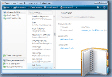 This series of tutorials will show you how to add and create new contacts in Windows Live Mail, how to create and use contact groups (distribution lists), to import contacts into Windows Live Mail from other email programs (like Microsoft Outlook, Outlook Express, Thunderbird, Apple Mail, etc.), restore your contacts, and how to export or backup your contacts. You will discover Windows Live Contacts, the address book and contact management application that comes bundled with Windows Live Mail.
- Add a new contact in Windows Live Mail
- Where are your contacts / Address book in Windows Live Mail?
- Create a contact group (distribution list)
- Import your contacts into Windows Live Mail (from another email program)
- Export your contact out of Windows Live Mail
- Backup or restore your contacts
Configuring Options and Settings in Windows Live Mail
 This series of tutorials cover the various customization features available in Windows Live Mail, from email format and delivery options, to junk and spam settings, setting Windows' default email program, etc. The email signature options are treated above, separately. Learn how to set Windows Live Mail as the default email program.
Here are several options you can customize: Show or hide the menu bar (classic menus), how to Show or hide the Folder Pane; also, Customize the Reading Pane and how you can Turn on/off new email sound; how to Change how often Windows Live Mail checks for new emails, and Prevent Windows Live Mail from automatically checking for new emails