Setup AOL in Windows Live Mail (AOL Mail Account Setup)
 Windows Live Mail & AOL Mail — Using an AOL Mail email account no longer requires having AOL (America Online) as your internet service provider. You can now signup for a free AOL email account at mail.aol.com. AOL Mail can be checked online, from a web browser like Internet Explorer at the same internet address; but you can also, at the same time, send and receive emails through your AOL email account in a desktop email program like Windows Live Mail, Outlook Express, etc.
This tutorial will show you how to setup AOL Mail in Windows Live Mail: and you will still be able to check you emails from a web browser, as you did before. We assume that you already have an AOL Mail account setup: if this is not the case, go to mail.aol.com and sign up for a free account. Once your AOL Mail account is active, you can proceed.
Setting up AOL Mail in Windows Live Mail
Setting up your AOL Mail in Windows Live Mail is very easy, and only takes one step.
 The first time you run Windows Live Mail, the "Add an E-mail Account" window automatically opens. If it doesn't, locate the "Add an e-mail account" button in Windows Live Mail (in the bottom left of Windows Live Mail main window); click the Add an e-mail account button to open the email account wizard: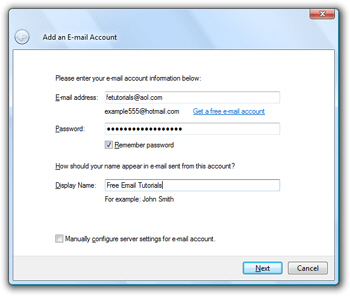
Enter your AOL Mail account information
In the first field ("E-mail address"), type your full AOL Mail email address in the format yourScreenName@aol.com. In the second field ("Password"), type your AOL password for this screen name/email account. Make sure that the "Remember password" checkbox is checked, so you don't have to type your password every time you check your AOL emails.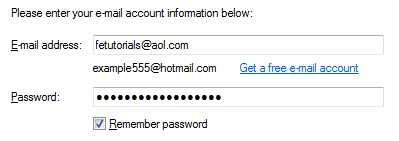
The "Display Name" field determines how emails you send from AOL Mail will appear to your email recipients (as the "From" field). The display name can be anything you want, and it doesn't have to match your AOL screen name or AOL Mail user name (the portion of your email address which comes before "@aol.com").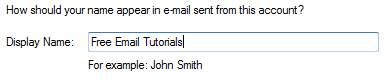
Before clicking the Next button, make sure that the "Manually configure server settings for e-mail account" checkbox is *NOT* checked:
(If this checkbox is checked, you will have to manually enter the mail server settings, TCP ports, and all kinds of things you don't need to know about: since AOL mail is a popular email service, Windows Live Mail knows how to setup AOL Mail accounts just with your AOL email address and the password.)
Now, click the Next button.
Finalizing your AOL Mail email account setup
You have finished setting up your AOL Mail account. If Windows Live Mail could successfully connect to AOL's servers, it will give you the following confirmation below. You can now close Windows Live Mail's "Add an E-mail Account" window.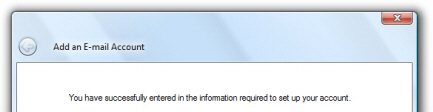
If not, it probably just means that you mistyped your AOL email address or your password.
If Windows Live Mail opens a "Show/Hide IMAP Folders" window, just ignore it by clicking the OK button: it will close this window and bring you back to Windows Live Mail.
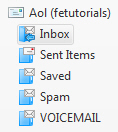 Your AOL Mail account has now been setup in Windows Live Mail. You can check your AOL emails either from a web browser, using the AOL webmail service (your emails in a web browser), or using Windows Live Mail on your main computer.
You can also setup AOL Mail in the copy Windows Live Mail you downloaded on other computers, like a laptop: the same AOL emails will be available everywhere.
That's it! Setting up AOL in Windows Live Mail literally took you one step.