Add a contact in Windows Live Mail / Create new contacts
 This free email tutorial shows you how to create a new contact in Windows Live Mail. There are four ways to add contacts: import contacts from another email program or an external file, create a contact from scratch in the Windows Live Contacts window, or add an email sender as new contact. Windows Live Mail will optionally (default) automatically add as contact a person to whom you have replied three or more times.
Except for importing contacts, which is covered in another tutorial, we will show you the other three ways to add or create contacts in Windows Live Mail.
Add an email sender as contact in Windows Live Mail
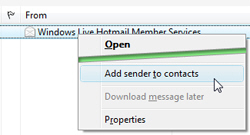 The easiest way to create a new contact in Windows Live Mail is to use an email you received from the person you want to add as contact.
Locate the email from this person, right-click on it, and choose "Add sender to contacts". The Add a Contact window will open, and be repopulated with the sender's email address.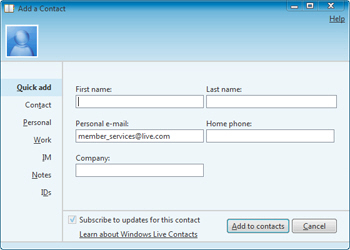
Windows Live Mail does not require you to fill all information about a contact before you can add it to your address book: optionally type the contact's first and last name and click the Add to contacts button. If you do want to spend time entering more information, notice the sections on the left: Quick add (selected), Contact, Personal, Work, IM, Notes, and IDs. You can fill out as much information as you like for your new contact.
Create a new contact through Windows Live Contacts
 Outlook Express and Windows Mail both use the Windows Contacts (Vista) or Windows Address Book (XP) applications to store their contacts. Windows Live Mail uses its own address book, called "Windows Live Contacts". This is where all the contacts saved from Windows Live Mail will be stored.
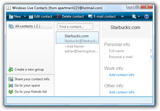
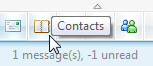
To launch Windows Live Contacts, click the address book icon in the bottom left corner of Windows Live Mail's main window. Alternatively, you can memorize this keyboard shortcut:
Tip: press Ctrl+Shift+C to quickly open the Windows Live Contacts window.
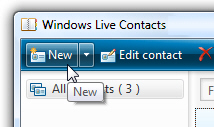 From the Windows Live Contacts window, click the New button: this will open the Add a Contact window, the same we saw earlier.
Fill out at least one field, and as many as you want; when you are done, click Add to Contacts. The new contact will now be available in your address book, and will "auto-complete" when you start typing the first few letters of a recipient email address.
Let Windows Live Mail automatically add email recipients as contacts
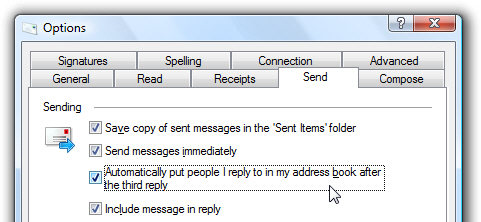
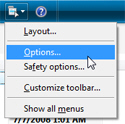 By default, Windows Live Mail will add as contact a person to whose emails you replied at least three times. This is an option, and can be turned off. To allow or prevent Windows Live Mail from automatically creating contacts from email correspondents, click Options from the Show Menu button.
This will open Windows Live Mail's Options dialog: select the Send tab. The third option under Sending is labeled "Automatically put people I reply to in my address book after the third reply".