Find email messages with Hotmail Search
 To lookup contacts, use the address book search tool. To find messages in your Hotmail account, you'll use the built-in Email Search Tool, explain in this tutorial - along with the quick find functionality that lets you easily locate all emails from a particular sender (a relatively new feature). In some cases, sorting your emails will be the best choices: they can be arranged by received date (or sent date, inside the Sent folder), from (sender), subject, size (including attachments), or conversation thread (where original email and all related replies are grouped in collapsible units). The last portion of this tutorial will show you how to use the advanced search functionality in the Windows Live Mail email program, also by Microsoft, which tightly integrates with Hotmail and other Windows Live services: if you also check those messages from a desktop email client, searching in your program will be much faster, and give you access to more powerful filters.
Tip: to quickly locate emails (typically, messages that require some action on your part), don't bother with full-fledged searches. Familiarize yourself instead with flagging Hotmail messages: it takes one click to flag an email, and another, single click to load all flagged messages!
Quickly find messages from the same sender
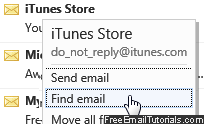 Locate one message sent by a particular person: then, move your mouse pointer above the sender's name, and leave it there for a couple of seconds. When Hotmail shows the contextual menu, click "Find email". Within a few seconds, Hotmail will load only messages from that sender: the "folder" selected on the left will be "Search Results", as visual confirmation. While the messages you see potentially come from completely different folders, you can open / delete / forward messages as you would if you were in a "regular" email folder - including checking the global checkbox at the top of the listing to select all these messages, and perform an action on all of them at the same time: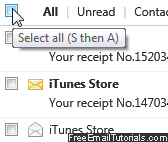
Hotmail Search Tool: find emails across folders!
For any other type of find operation, use the Hotmail Search Tool, available from inside any email folder: click in the search box near the top right corner, or press the equivalent keyboard shortcut of "/" (press the forward slash key while outside a text field). Start typing a keyword, and Hotmail will start suggesting matches, in real time:
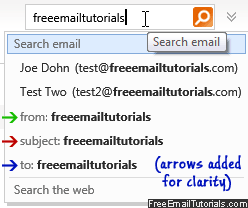 Notice that matched email addresses came first - if you click to select them, Hotmail will load all messages from that sender (same results as above), but saves you from having to type the entire email address. If no address is matched "on-the-fly", type it in its entirety and click "from:" at the bottom of the autocomplete menu (green arrow).
Click on "to:" (blue arrow) to match recipient's name and/or email address (this includes you, but also any other people who were sent that message).
To search for a word that you know appears in the subject line of an email, click "subject:" when you finished typing (red arrow).
If you hit Enter at any point, Hotmail will search for what you typed, inside all your email folders (same as clicking on "Search email", at the top of the autocomplete menu).
Hotmail will load the results and display matched messages as it would a "regular" email folder: as was the case above, you'll see "Search Results" selected as "folder" in the bottom left listing. These matched emails potentially come from anywhere in your account (inbox and any other folder). You can sort these results as you would in a normal folder - notice the navigation arrows at the bottom, when you have several pages of results:
Note: you can click "Search the web" (last in autocomplete menu), and Hotmail will open a new browser window and with a Bing search for your keywords using Bing - no need to open a new browser tab!
Advanced Search Options
 In most cases, this basic search field will allow you to find any email you want; for more detailed searches (and/or narrow down the amount of results you are getting), click on the double-chevron button (highlighted on screenshot) to reveal the "power search" text fields.
(). Let's assume that you are currently inside your Hotmail inbox, and that, like us, you tend to let emails accumulate in the inbox before you file them. This means that sorting emails will not help much, and going through each email will not be feasible either. Let's use the Hotmail email search tool!
Side info: this feature finds messages in your inbox and email folders; to lookup contacts, use instead the address book search tool.
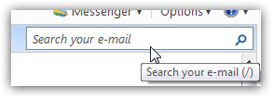 To search for emails inside Hotmail, click inside the Search your e-mail field in the middle top right corner of the window, as shown on the screenshot. Type some keywords you know are contained inside the email you are looking for, and hit Enter to launch the search.
Note: the forward slash between parentheses indicates a keyboard shortcut. Press that key at any time, and the focus (blinking cursor) will go to the search field! Type your search terms and hit Enter! (note) While the hint no longer shows in the tooltip, the shortcut still works.
 You can also click on the Search button (the magnifying glass icon inside the search field) to launch the email search. As soon as you hit Enter from the search field or click on the Search button, Hotmail will display a "Loading" message in the lower left corner of the window, while it tries to find emails matching the keyword(s) you searched for. Depending on the amount of mail you have, this search can be near-instantaneous, or take a few seconds. After Hotmail finished finding all emails matching your query, it will display the search results inside a temporary, virtual folder.
Hotmail search tip — to quickly start an email search in Hotmail, hit the "/" (the forward slash) key on your keyboard: this is the keyboard shortcut to put the cursor inside the search field. More Hotmail keyboard shortcuts.
Hotmail search returns the emails it finds
After displaying the first 400 emails it finds, Hotmail also shows a search bar summary above the search results: it indicates the search terms it looked up, and includes a Return to inbox link you can click once you are done with your search.
If Hotmail finds more than 400 emails matching your search terms, it will display in the search bar the following message: "Search results were limited to the first 400 entries [emails]. Please refine your search query".
Find emails by knowing the Hotmail search tool limitations
To save you some time scratching your head, here are a few limitations we found in the Hotmail search tools which will influence the way you try to find emails inside Hotmail. The time we spent testing these will be time you save not trying them for nothing!
Hotmail email search is not case-sensitive (it is "case-insensitive")
Not too surprisingly, the Hotmail email search tool does not pay attention to how you capitalize your search terms, so you might as well save yourself an extra keystroke on the Shift key, and type all your search terms in lowercase letters.
Hotmail email search finds account-wide matching emails
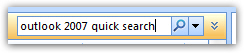 When you launch an email search from Hotmail, it will find all matching emails regardless of the email folder you are currently looking at; in Outlook 2007, for example, when you use the quick search field, Outlook only searches for emails inside the current folder - Hotmail does not, and will return the same email search results all the time (i.e. whatever folder you might be in at the time you start searching). And, as you have probably already noticed, Hotmail does not support "incremental search", where it starts finding emails as you type the search: it is a traditional email search, that launches only once you hit Enter or click on the Search button.
Hotmail email search does not currently support special operators
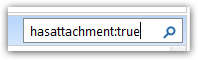 The only search operator we found in Hotmail email search was the one discussed in our tutorial on sorting your emails: "hasattachment:true". Typing this (or the opposite "hasattachment:false") inside the search field will find and return the (first 400) emails that have file attachments (or that do not have attachments, if you typed "false").
Even surrounding your search terms with double quotes does not find the emails you expected (in many other applications and search engines, the double-quotes force the engine to find your search terms in that exact order, as opposed to finding emails with these terms scattered throughout the email).
By extension of the remark above, the Hotmail email search tool does not care about word order either: searching for "Abe Lincoln" will return the exact same results as "Lincoln Abe".
Hotmail does not currently offer an "Advanced Email Search" feature
At the moment, the Windows Live Hotmail search field we discussed in this tutorial is the only way you can find emails in your Hotmail account - but the Windows Live Team maintains and upgrades the service all the time, and we will eventually have a more powerful email finding tool. The final section of this tutorial shows you how to work around the current limitations of the Hotmail search tool.
We should also say that the Hotmail search is not bad per se, it is just a quick way to locate emails, and not designed to be the advanced email finding tool that comes bundled with many modern email applications like Windows Live Mail.
Sorting email search results in Hotmail
For some reason, the current version of Windows Live Hotmail does not seem to allow you to sort your email search results, regardless how the actual number of emails the built-in search tool found (the error message below would otherwise seem to indicate that the inability to sort search results is linked to the number of emails you find).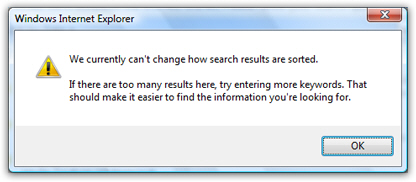
Extending the Hotmail email search tool:
Find Hotmail emails in Windows Live Mail
The easiest way to find any Hotmail email is to use the Windows Live Mail email program, which has been designed to integrate flawlessly with Hotmail. You will first need to setup Hotmail in Windows Live Mail, after which point all your Hotmail emails will be downloaded and available in Windows Live Mail. To perform an advanced email search in Windows Live Mail, hit Ctrl+Shift+F on your keyboard, and the Find Message window (pictured below) will appear: this allows you to find Hotmail emails based on email folder, based on sender, recipient, subject line, or message content (email body). The advanced email find tool even lets you specify a date range in which to look for emails.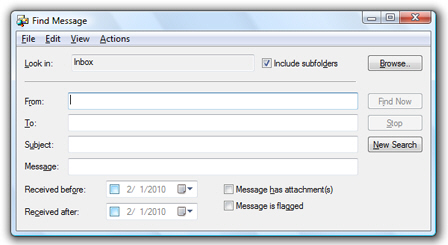
By using Windows Live Mail to check your emails, as well as using Hotmail from a web browser, you get the best of both worlds: you can check your emails (and superficially search your email messages) wherever you have internet access, and you can perform advanced email searches, and find all emails you want, from any computer on which you have installed Windows Live Mail!