Sorting email messages in Hotmail
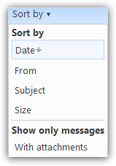 Windows Live Hotmail lets you sort emails in any order you want. By default, your emails are sorted by date, from the newest emails you want to read at the top, and the oldest emails at the bottom. But, as you will learn in this tutorial, you can also sort your Hotmail emails by sender ("From"), by subject (the email title), by size - with a special order by attachment function. We will also show you how to sort your emails in reverse order for any of these sorting fields. In conjunction with our other tutorial on searching Hotmail for emails, you will never have to look long to find an email in your Hotmail account. This tutorial will also give you a quick glance at the extra searching and sorting functionality you get when checking your Hotmail messages from Microsoft' Windows Live Mail desktop email program.
- In this Hotmail tutorial:
- Sort by date
- Reverse sort order (Ascending/Descending)
- Sort by "From" sender
- Sort by subject line
- Sort messages by size (including attachments)
- Sort vs. Search vs. Filter
- Sort by "attachment only" (Filtering)
- Show only Unread emails (Filtering)
The Hotmail "email sorting" capabilities covered in this tutorial are not the other automatic-mail-sorting feature Hotmail offers ("email filters", or "email rules"—) covered in this tutorial.
Sort Hotmail emails by date
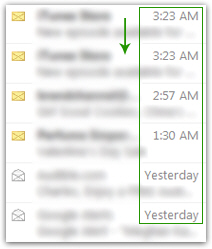 By default, all your emails (in Hotmail and most other email programs) are automatically sorted by date; in the case of Hotmail, emails are sorted by date in descending order: your newest emails are displayed at the top, and showing on the first screen of email (you can have multiple pages of emails for any given folder, especially in the case of the Hotmail inbox where all emails arrive by default).
If you want to sort your emails from oldest to newest (with most recent mail messages displayed last), you simply need to reverse the email sort order: to do so, click on the Sort by dropdown menu visible at the top of your email listing. Hotmail's email sort menu shows three pieces of information: first, it shows all the mail sorting options (fields) at your disposal; second, it shows, by highlighting it, which field is currently used to sort your emails; last, it displays a down-point or up-point arrow next to the current sorting field to indicate whether this field is at the moment sorted in ascending order (alphabetically from A to Z / or from smallest to greatest size / or from oldest date to most recent one), or whether the field is sorted in descending order.
Change the email sort order (Reverse sorting in Ascending/Descending)
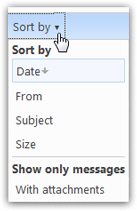 In this screenshot, we can tell that emails are sorted by date, in descending order: this is the default Hotmail sort order, which displays emails from most recent (at the top), to oldest.
To display the oldest email messages at the top, you just need to reverse the sort order: click on the Date field. Within a few seconds, you will see your oldest email in the inbox (or whatever email folder you happen to currently be in) displayed at the top. If you click on the Sort by menu once again, you will notice that Hotmail has updated the arrow to point upward - indicating that your emails are now sorted by date, and in descending order. The header of the Sort by menu itself has been changed to reflect the custom sorting field you picked last: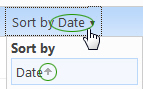
* Help! Where is the sort menu in the new Hotmail? * 
Just like before, you can sort your email messages through the Sort menu, arranging messages by Date, From (email sender), Subject, Size (including attachments), or even by Conversation ("email threads") - the new sort menu is located on the right of the "toolbar", which contains the new filters (All, Unread, From Contacts...).
Instruct Hotmail to sort your emails by sender
Another very useful sort order is to show emails sorted by sender: this allows you to quickly locate an email from a particular person, but is also a nifty sort to quickly move emails from a particular sender into an email folder of your choice (creating custom email folders by person or organization is an easy way to stay organized since, while you may easily forget the date or subject line of an email, you will nearly always remember who sent it).
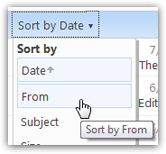 To sort your Hotmail emails by sender, click on the Sort by menu, and choose From: after a few seconds, your inbox is now sorted by sender, in alphabetical order based on their "display name" - this means in most cases that the sender's first name (which is displayed before the last name), will be used to sort your emails this way (when you sort your emails alphabetically, punctuation marks and numbers appear before letters). Note that, unless you were looking for an email sender whose first name happens to start with an "A" or a "B", you will need to navigate through multiple pages of emails before you find the sender in question: to do this, use the navigational numbers and/or arrows displayed at the very bottom of your email listing:
Sorting Hotmail emails by subject line
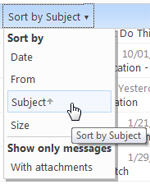 By now, you have guessed that all it takes to sort Hotmail emails by subject is to click Sort by > Subject.
But we should make a quick note about the sort by subject sorting order: Hotmail is smart, and will sort your emails without regards for the special transfer prefixes like "RE:" (for reply), "FW:" (for email forwards), "Attention:", etc. Though strictly speaking part of the email subject, Hotmail understands that if you sort emails by subject, you are not trying to group all "RE:" replies together. So a sort-by-subject will take into account only the characters that directly follow this prefixes.
Email sort tip: if you see an email unexpectedly displayed in what appears to be out of order, it probably means that the email subject start with a space, or another "non-letter" character.
Sort Hotmail emails by size
When you choose to sort emails by size, Hotmail will take into account not just the content of the email itself, but also any file attachment it contains. So, a one-line email could appear as the largest email (size-wise) in your folder, while a three-paragraph email shows as being the smallest. Another factor that influences email size is any "inline" pictures, or images visible inside the email that are not sent as attachment. Yet another case where you see emails of small size, but filled with images, is when the email was composed to reference the image, as opposed to embedding the images inside the email.
Side info: A Hotmail signature that contains an image will not "count" towards the actual size of the email message, even if it does take time to download it; this is because Hotmail only "links" to the picture (referencing the graphic file in question), but does not "embed" the image inside the signature.
Sort emails, search for emails, or filter messages?
In many cases, sorting your emails by sender to try to find a particular email can quickly become tedious; we recommend instead that you use Hotmail's email search feature, which is covered in the next tutorial. As you will learn, you can search by any keyword, which is very handy when you just remember part of the email. The options below show you an extension of search, namely Hotmail's ability to filter out messages: learn more by reading our tutorials on "Hotmail Quick Views", and "Search and Find Emails in Hotmail".
Ask Hotmail to only show emails with attachments ("Filtering")
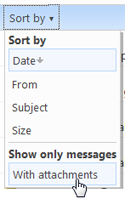 While this is more a "filtering" than a sorting feature, Windows Live Hotmail displays this option inside the Sort by menu: if you click Show only messages - With attachments, Hotmail will take a minute to find and display only email messages that contain one or more file attachments (which is different from the embedded or referenced graphics) we discussed above.
Hotmail will displays these emails as a search result, and not as a sort, as confirmed by the screenshot below; nonetheless, just remember that it is listed under the Sort by menu.
Sort Hotmail emails by Unread status ("Filtering")
A frequent request is the ability to sort Hotmail emails by Read or Unread status, something that is available in several email programs. Unfortunately, at the present time, Hotmail does not support this filtering mechanism to isolate unread emails in your inbox. There is a temporary workaround, however. If you setup Hotmail in Windows Live Mail, you get your Hotmail emails with the full functionality of a powerful desktop email application. And, as it happens, Windows Live Mail can sort your Hotmail emails by unread status. Read more about this in our Windows Live Mail tutorial.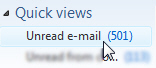
 A single click brings you to a virtual folder where only unread Hotmail emails are displayed. As you read your emails, the number of unread emails sorted inside this folder is diminished. Next time you visit this virtual folder, Windows Live Mail will no longer show any Hotmail email you have read since your last visit: it updates the read / unread emails in real time.
…And this concludes our tutorial on sorting emails in Hotmail; the next tutorial will show you how to search for emails from within Hotmail: the combination of searching and sorting is one worth exploring and mastering, as it will make your life much easier, spending a lot less time hunting for emails lost inside your overflowing inbox or a myriad of custom email folders!