Create a new folder in Hotmail
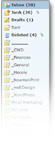 As we saw earlier, your Windows Live Hotmail account automatically comes with five standard folders. The Inbox and the Junk folders are used by default to store all your emails; any email flagged as spam goes straight to the Junk folder, and all remaining emails go straight to the Inbox.
With time, leaving all your email in the inbox becomes very impractical. Fortunately, Windows Live Hotmail lets you create your own folders, and virtually as many as you need. And adding new folders to Hotmail couldn't be easier.
Add a New Folder to Hotmail
Updated for the new Hotmail: the new Hotmail no longer features a "New" dropdown menu. Instead, you now have to move your mouse cursor above the "Folders" section in the left pane, as shown on the screenshot below: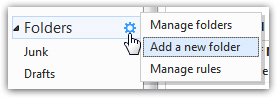
Then, click on the gear icon / button to reveal the menu, and choose "Add A New Folder".
Windows Live Hotmail will redirect you to the New folder screen: type a label for the new email folder inside the "Folder Name" text field, and click on the "Save" button to create the folder - you can also hit Enter on your keyboard after you chose and typed a new name: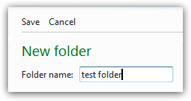
Hotmail will create the folder on the server, and redirect you to your full folder listing, where you should see the newly created folder, with a size of zero (since it contains no messages).
Just click on the "Inbox" link on the left of these folders to return to your emails.
Creating email folders in the old Hotmail
The old version of Hotmail allowed you to create folders with a simple click on the New menu; this functionality may come back as confused users don't necessarily think of hovering about the existing folders to reveal the gear button and click on it.
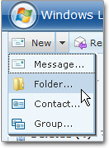 The leftmost button on Hotmail's toolbar has two click areas: clicking the New button itself will create a new email message. Click instead on the downward-pointing arrow, which will display a menu: under the New menu, choose Folder.
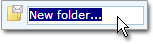 As soon as you clicked Folder..., Hotmail creates a new folder at the very bottom of your folder listing. The folder name is editable, and selected: start typing over the new folder's name you want. Finish by hitting Enter to finalize your folder name choice.
The folder will disappear, at least apparently: this is because Hotmail places your new folder in its proper alphabetical position as soon as you hit Enter. Any email folder you created will be visible right below the Deleted folder. Check your folder listing: the folder you just created should be right there.
Re-ordering (Sorting) your Hotmail Folders
Hotmail automatically displays all your folders in alphabetical order, right below the Deleted folder. Knowing this allows you to use tricks to force a particular folder to appear at the top of your custom folder listing.
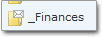 Simply type a hyphen ("-") or underscore ("_") character in front of the folder name. Since special characters like these appear before letters, folders using such a prefix will show up on top.
Using other special characters and numbers in the beginning of folder names does the same trick. Just experiment with it!
Hotmail Folders and Your Email Program
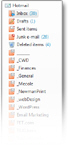 It is possible to use an email program, instead of your web browser (Internet Explorer for example) to use your Hotmail account: Outlook Express, Windows Live Mail and Office Outlook are such examples. Any folder you create for your Hotmail account in Outlook Express or Windows Live Mail will automatically be synchronized ("synced" for short) with Hotmail.
In other words: any folder your create in Hotmail from your browser will be added in your email program as well; any folder you create in your email program, under your Hotmail account, will be added to Hotmail as well.