Send email file attachments with Hotmail
 It is often useful to send someone a file that you cannot paste inside your email; for this purpose, Windows Live Hotmail lets you send files as attachments to your emails. A previous tutorial explained how to open and download email attachments, this tutorial focuses on how you email files with Hotmail. A separate, upcoming tutorial will be dedicated to emailing pictures and photos through Hotmail (which includes a special image upload tool we will explain how to install and use as well).
Tip: If you're concerned about attachments going through, be sure to read our tutorial on maximum file attachment sizes with Hotmail!
Note that you can install the "Windows Live Experience" add-on in Hotmail to let you manage image uploads, edit the pictures before insertion, and finally uploading the photos you want for your email, and see them added inside the email body itself, as opposed to just showing up as file attachments. Learn how to add pictures inside your Hotmail emails.
Attach a file to your email
While you are composing an email, you can at any time attach a file to the email; Windows Live Hotmail even lets you attach multiple files to a single email. As you save your email regularly to the Drafts folder, the reference to the file attachments are saved with the email.
As a side note, Windows Live Hotmail does not save your file attachments to the email itself, like a desktop email program like Microsoft Outlook or Windows Mail does. The "attached files" are actually uploaded separately to one of Hotmail's file server when sent within Hotmail; when you email with attachments is sent to a recipient not using Hotmail, the files are attached to the email itself. This is why sending an email through Hotmail, with file attachments, is so fast: the files have already been uploaded, separately from your email.
Attaching files
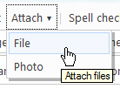
To attach a file to your email, click on the Attach menu at the top of the email editor: from the dropdown menu that appears, click on File (we will discuss attaching pictures in a later tutorial).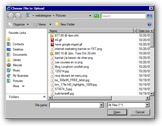 This will open a Choose File to Upload dialog, which my default displays the content of your Pictures folder (in Vista or Windows 7; in Windows XP, it automatically shows the "My Pictures" folder). If needed, navigate to a different folder on your computer to find the file you want to attach. Double-click on the file you want to email, and Hotmail will upload it in the background.
Confirming that the file is attached to your email
Depending on the file attachment size, and the speed of your internet connection, you may see Hotmail's "in progress" upload message. To cancel uploading the file you picked as attachment, simply click the Cancel link Hotmail displays during the upload process.
We explain further below how to remove an attachment from a Hotmail email.
Once the attachment has successfully been uploaded, it shows as attachment in Attachment bar, below the email editor's subject line: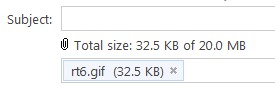
Notice also that Hotmail is informing you on the current size of your total number of attachments; on our screenshot, this message reads "Total size: 32.5 KB of 20.0 MB". To help you know how large your file attachments are, know that there are 1,000 KB (kilobytes) inside 1 MB (megabyte) - in other words, there are 20,000 KB in 20 MB, the maximum size limit for our attachments. (Note that 20Mb is the maximum file attachment for the Hotmail Plus service; the regular, free Hotmail service allows for up to 10Mb in attachments per email: learn more about Hotmail attachment size limits.)
Adding multiple attachments to your email
To attach multiple files to your email, simply repeat the process described above; the only limitation is to remain under your Hotmail account's maximum file size limit.
As you attach more files to your email, Hotmail updates the attachment information bar and updates your current Total Size information: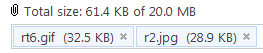
Removing a file attachment from your email
To remove an attachment from your email, simply click the "x" button displayed inside each of the light blue blocks representing file attachments. Be careful though, that Hotmail will not warn you before deleting the attachment from your email; if you try to re-attach the same file to your email, the upload process will start from scratch. (Good to keep in mind if you have a slow internet connection and/or are trying to attach a very large file - which takes relatively long to attach regardless of your connection speed).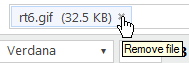
 Once you have removed all attachments from your email, the file attachment bar hides itself - and only reappears when needed, if you add more attachments later on. If the file attachment information bar is invisible, it means that you are back to zero, as far as file attachment size limits are concerned.
Final note of caution about file attachments
 ...And this is how easily you attach files to your emails with the Windows Live Hotmail webmail service. Simply click Send once you have finished composing your email and attached all the files you wanted to send, and your recipient should receive your file attachments. A note of caution: since some email services or system administrators, especially if the file is larger than 2-3 megabytes and/or is an important file. Always explicitly mention that one or more files are attached: this lets your recipient know that there was a problem if no attachment came through.