Compose email messages with Hotmail
Next to reading your emails, composing new email messages is the most common task you will likely perform in Hotmail. The previous tutorials familiarized you with replying to emails and forwarding emails, both of which function with the same Hotmail email editor. This Hotmail tutorial assumes no prior knowledge of the email editor though, and will guide you through the options available in creating new emails: from picking recipients, using the Cc and Bcc fields, optimal subject lines, and some guidelines on content (email body). 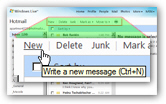
To create a new email message, click on the New link displayed at the top of the screen. As you can see on the screenshot, you can also use the keystroke Ctrl+N to compose a new email (learn more about using keyboard shortcuts in Windows Live Hotmail).
Creating a new email
Clicking New will launch Hotmail's email editor, the same editor it uses when you reply to emails, of forward emails to other recipients. The email editor contains three portions: the email recipients, the title (or subject line), and the content (also known as "email body").
Picking recipients for your new email message
Hotmail lets you add email recipients in three ways: you can type the email address of one of the recipient. If the partial email address you are typing is found in your Hotmail contacts, a list of possible matches is displayed: click on the email address you want, or press Tab to use the currently highlighted email address: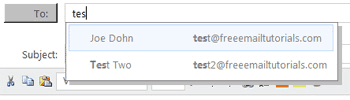
Hotmail also allows you to type on of your contact's name or nickname, and it will try to find contacts whose information matches. If you wonder why Hotmail happens to suggest a certain matching contact as you type, simply look for the text in bold - it indicates which information Hotmail used to match the suggested contact(s).
Displaying your full contact list
You can also click the To: button to launch your Hotmail contacts, and pick one or more of them as recipients for your new email: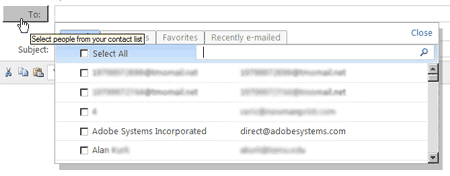
Notice that Hotmail automatically places the blinking cursor in a search field: this search field allows you to type partial names or email addresses that Hotmail will try to match. Select the checkbox corresponding to each of the contacts you would like to email. You can also use the three contact filtering tabs to access the desired contacts more quickly: Categories, Favorites, and Recently e-mailed.
The Carbon Copy (Cc) and Blind Carbon Copy (Bcc) fields
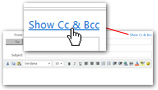 By default, Hotmail only displays the To recipient field for new emails; but the Cc and Bcc fields are only a click away, literally.
If you want to use the Cc or Bcc fields in your new email, simply click the Show Cc & Bcc link at the top right corner of the email editor. Hotmail will now show both the Cc and Bcc text fields right below the To field, and above Subject.
What is the Cc (Carbon Copy) field? From a functional standpoint, the Cc field works just like the To email recipient field; you will typically carbon copy email recipients who should be informed of your emails, but are not its primary recipients (the primary recipients are listed in the To field). People included as carbon-copy in an email are not expected to reply, unless directly asked a question. Whom you carbon copied in an email is visible to all.
What is the Bcc (Blind Carbon Copy) field? Here to, Hotmail's Bcc field works just like the To and Cc fields. Use the Bcc field when you want to "secretly" include an email recipient, without the other recipients' knowledge. You can put everyone's email address inside the Bcc field, and no one will know whom else was emailed.
Keep in mind that when someone chooses to reply to an email using Hotmail's Reply all command, none of the blind-carbon-copied recipients will be included in the reply - only the original sender, the To and Cc recipients of the email. (Learn more about replying to emails in Hotmail.)
New email subject line
When typing a subject line (or title) for your new email, make sure that the subject is short, while highly descriptive of the email content. This makes it easier not only for your recipients, but also for you later on. By having an intact email subject throughout an exchange, you will have a useful ability to sort emails by subjects to retrace all parts of the conversation. We always Bcc ourselves on new emails to have a copy of all our emails as well.
You can modify the email subject line at any point in the exchange if the topic changes - the main point is to allow email titles to identify their content, or their belonging to a particular conversation. An email titled "RE:" (the default title Hotmail gives an email reply when no subject line was defined) helps no one!
Typing and formatting the content of your new email
The next tutorial explains Hotmail's email text editor in detail, with all its functionality: learn how to format your emails with Hotmail.