Forward emails with Hotmail
The previous Hotmail tutorial explained how you can use the Reply or Reply to all commands to send an email back to its original sender and optionally other recipients. This tutorial will show you how to use the Forward command to send a copy of any email you received to one or more recipients. We will also discuss some common problems with email forwards, especially concerning missing images or incomplete content.
Using Hotmail to forward an email
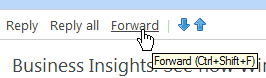 When you receive an email worth forwarding, simply click on the Forward link displayed next to Reply and Reply all. This will create a new email with a blank To field where you can add recipients; Hotmail has automatically populated the email's subject line with the original email title, this time prefixed with
 FW: to indicate to others that this is an email forward.
(The characters Hotmail displays at times between parenthesis in link titles, as shown in the above screenshot, are keystrokes you can type instead of having to click on the link itself. A separate tutorial will tell you more about Hotmail keyboard shortcuts.)
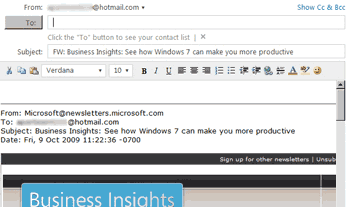
Once you have added one or more recipients to your email forward, Hotmail lets you type something above the content of the email being forwarded; this is optional, but can sometimes help your email recipients understand why the email is being forwarded to them. Also keep in mind that some users with limited experience with Hotmail and email in general may be puzzled by receiving an email from you and seeing in it someone else's content.
How does an email forward appear on the other end?
When you forward an email from Hotmail, the recipients of your email forward will see the email as coming from your Hotmail email address, as they would for any other new email or reply you sent them. The automatic "FW:" prefix, if left intact in the subject line, will tip them off that the email is a forwarded message. The screenshot below shows an email forwarded from Hotmail to another webmail service; it basically looks like any other message: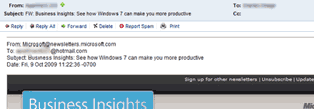
This particular email forward did not contain any message from the Hotmail user, otherwise it would appear above the headers (From, To, Subject, and Date) of the email forwarded.
Email Forward Etiquette
 As tempting as it really is, try to avoid forwarding emails too often. People tend to see their inbox as a to-do list of sorts, and seeing too many emails from a person might end up having an effect opposite to what you expected. Forwarding too many joke emails at work will also give others that you do not have enough work while they struggle with their load. All about perception...
Issues and Problems with Email Forwards and Hotmail
Hotmail only lets you forward emails "inline", or inside the body of a new email; if your recipients are having trouble seeing the emails you forward, try sending a link instead. Otherwise, you can copy the content you are interested in, and paste it inside a new email. Failing that, you can send a file attachment (either saving the web page or email in a ZIP archive, printing the web page or email to PDF and emailing the PDF document, etc.)
In many cases, problems are not with Hotmail per se, but with the email recipient's email program settings - most modern desktop email application like Windows Mail, Windows Live Mail, or Microsoft Outlook, will hide by default images (which can be used to determine if an email was read) until the email user either adds you as a safe sender, or until the user clicks on a button or information bar that allows loading images. Many users never notice this information bar, and therefore do not see the (entire) content of your email forward.