Reading Hotmail messages: Inbox and Reading Pane
 Once you have signed up for Hotmail, you will start receive emails from your friends and colleagues, as well as any newsletters you may have elected to receive during the signup process. All emails you receive at your Hotmail account will go in one of two email folders: most emails will go to your Hotmail inbox. Emails Hotmail believes might be spam will automatically go in the Junk folder.
This tutorial will give you an overview of Hotmail's inbox and reading pane. By default, Hotmail shows you the Today screen, which includes the listing of your email folders in the left pane. To start reading your emails, click on Inbox.
Checking your Hotmail emails with an email program
While checking your emails online with Windows Live Hotmail is fast and convenient, know that you can also read your Hotmail emails from a variety of email programs:
- Check your Hotmail emails from Outlook Express
- Check your Hotmail emails from Windows Live Mail
- Check your Hotmail emails from Microsoft Outlook
Read your incoming email messages
Displaying a number next to a folder name is the convention Hotmail uses to indicate unread emails inside the folder. The screenshot above shows that the inbox contains 130 unread emails; when emails perceived as spam go to the Junk folder, you will see a number between parentheses displayed next to "Junk" - this is a quick way to determine if you need to check your spam folder before actually having to open the folder.
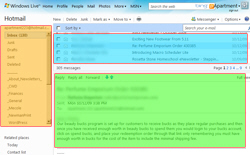 Once you click on Inbox, the main Hotmail window opens, with three important components: on the left, highlighted in orange on the screenshot, all your email folders are listed (all of them using the number convention next to their name to show the number of unread emails, if any, they contain). Highlighted in turquoise, the listing of emails in the currently selected folder (the inbox by default). In green, the "Reading Pane", where Hotmail displays the selected email's content.
By default, the reading pane is displayed at the bottom of the screen, like most email programs do. Select an email in the list of emails in the current folder, and the email's From, To, Subject, and content are displayed inside the reading pane.
Customize Hotmail's reading pane
Windows Live Hotmail lets you customize the reading pane placement on screen: since most monitors are wide, and support high screen resolutions (the amount of "things", or pixels, you see on screen), you may prefer to have the reading pane displayed vertically instead of horizontally. This will still leave you enough room to show the email folders, the email listing, and the current email's reading pane alongside one another, as three vertical columns. To display the reading pane vertically, click on Options in the top right of the screen, and choose Right under Reading pane settings.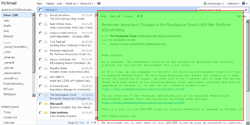
Your emails are now displayed vertically, like the reading pane: since most emails are higher than wide, this reading pane configuration will save you some scrolling. To restore the reading pane back to its original, horizontal position, click on Options again, and choose Bottom - you are back where you started.
Tip: for more in-depth information and customization, please see our "Hotmail Reading Pane Settings" tutorial.
Notice too that under Reading pane settings, one of the choices is "Off". If you click on Off, Hotmail will hide the reading pane, and display only a list of emails: in that scenario, you need to double-click on an email to read it (and from thereon, use the navigational arrows or keyboard shortcuts to move from one email to the next). When you double-click on an email, regardless of your reading pane settings, Hotmail will open the email in "Full View".
Reading emails in full view
 If an email is too wide for your reading page settings and/or your screen resolution, Hotmail leaves you the option to open the email in full view, so that the email headers and content can take advantage of the full width and height normally shared with the email listing. Click on the Full view link in the top right corner of the reading pane, or double-click the email in question inside the list of emails the current folder contains.