Block all emails from everyone except Hotmail contacts
 A little known Windows Live Hotmail feature allows you to truly take control of your inbox and the email messages that reach it, but letting only authorized senders (Hotmail contacts and Hotmail safe senders) to get through to the most important email folder of your Hotmail account. This setting requires some explaining, since it will imply taking some precautions to ensure that legitimate correspondence does reach you, and in a timely manner. You can configure this option very easily, and turn it back off at any time; anyone using a Windows Live Hotmail email account for business may find it an expedient way to quickly get to customers' emails, for example, as priority (keeping in mind that prospects aren't yet in your address book!)
Only allow contacts and safe senders to your Hotmail inbox
Here are the simple steps to follow to make your inbox as spam-proof as it can get:
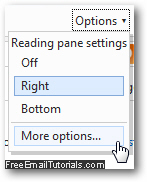
- If needed, start first by signing into Hotmail, and go to your inbox. Once in, click on the "Options" menu near the top right corner of the page, and choose "More options" from the dropdown menu, as shown on the screenshot below:
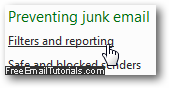
- The next screen Windows Live loads is the "Hotmail Options" page that lets you customize your email account and profile: under "Preventing junk mail" in the second column, click on the "Filters and reporting" link:
- When the junk mail filters and spam reporting settings screen loads next, you will see several options you can configure; under "Choose a junk email filter", Windows Live Hotmail gives you two choices.
• By default, "Standard - Most junk email is sent to the junk email folder" is selected
• Instead, click on the second option: "Exclusive - Everything is sent to the junk email folder except messages from your contacts and safe senders, Windows Live Hotmail service announcements, and alerts that you signed up for".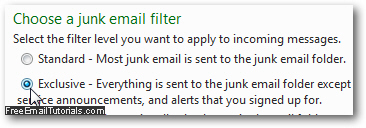
- This setting will essentially block all email messages sent to your Hotmail inbox by unauthorized users; so, when you login to your Hotmail account, and go to your inbox, you will only see emails from a handpicked list of contacts and safe senders you allowed to email you. Everything else will be automatically sent to the Hotmail Junk mail folder, as spam normally is with the default setting.
- Scroll down and click on the "Save" button to save your new setting and enable your exclusive inbox. From this point on, all emails you receive to that Hotmail account will follow this rule - note that the option is not retroactive, and the current content of your inbox will remain untouched.
Hotmail Tip: as mentioned earlier, this option stays on and enabled once you have configured it - if you decide later on that you do want to let all emails through once more (and restore the default Hotmail inbox settings), just follow the steps outlined above, choose the "Standard" inbox option this time, and click "Save".