Hotmail Sign in
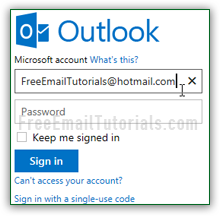 The Hotmail Sign in page lets you login to your email account, and control how long you stay signed in to Microsoft's Outlook.com webmail service.
If you use an email client like Windows Live Mail to check your emails, you never have to re-enter your username or password unless you change your credentials: that's because you only install email programs on your own computer, which isn't accessed by the public.
But a web browser allows anyone to connect, so security is much tighter. Even if you choose to use the "Keep me signed in" option, it will only last for a few weeks, or until your cookies are cleared - at which point you'll have to re-login from that particular browser. This tutorial explains all there is to know about this login process - and it applies regardless of your email address domain (@hotmail.com, @msn.com, @live.com, @outlook.com, and even localized versions).
Tip: don't yet have an email address? Create a Hotmail account: it's free, and you can even choose from multiple email domains!
The Hotmail Sign in Page
To access the sign in page, you can go to hotmail.com, live.com, or outlook.com (all official Microsoft URLs), and you will see the login form on the right. If you don't, it just means that someone is already logged in to their account: simply click on that person's name (top right corner of the page), and choose "Sign Out" from the dropdown menu. Now start over! Either way, you'll be redirected to the "login.live.com" page - if another email address and password are "auto-filled" by the web browser / password manager you are using, just erase it:
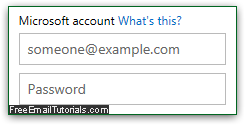 Under Microsoft account, enter your full email address: your username, the "@" symbol, and the domain name - "@hotmail.com", for example. (You can't just enter your username, because someone else might also use it, just for a different country or domain.) Enter your email password in the next text field: remember that it is "case-sensitive" (uppercase and lowercase letters are considered different characters, so make sure that CapsLock is off!)
Note: this first field used to be called a "Windows Live ID", because it was used exclusively for Windows Live services: Hotmail, Windows Live Mail, Live Writer, etc. But since Windows 8 came out, Microsoft lets you use it to logon to your computer, and keep your data synchronized across devices and online services (like SkyDrive).
Automatically sign into your account
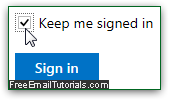 The "Keep me signed in" checkbox, if checked, will create a "cookie" for this web browser: a cookie is a small text file saved in your browser's profile. It doesn't contain your actual login, but information telling Microsoft that you want to automatically access your inbox, and bypass the sign-in form altogether.
Since this means that anyone typing hotmail.com in that browser would automatically be logged in, never use that option from a public computer, or a PC shared with people you don't trust! Also, remember that you can lock your PC before walking away from it - on Windows, you can use this keyboard shortcut: Windows Key + L
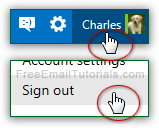 FYI - if you accidentally chose to stay logged in, don't worry: just click on your name in the top right corner and choose "Sign out". Manually logging out of your account will automatically clear that cookie, and you'll have to enter your credentials next time.
 Either way, click on the Sign in button or hit Enter: if your username and password were correct, you'll land in your inbox. When you are done, you can just close the browser window / tab - and if you choose to remain signed in, just type "hotmail.com" in the address bar (or bookmark your inbox page) and you'll be in!
Cannot login to your account?
 If you can't sign in to your inbox, click on the Can't access your account link under the Sign in button: this will guide you through the recovery process discussed in our "Reset Hotmail Password" tutorial - by verifying basic account information and using your alternate email address, you'll be able to regain access.
Mobile Hotmail Sign in
If you are on the go, and wish to check your email account from an unfamiliar location or public computer, you should not use your real password (in case someone watches over your shoulder as you type it, or a keylogger is running on that machine, etc.)
 Click on the "Sign in with a single-use code" link and you'll be redirected to an alternate login form: enter your primary email address and your cell phone in the next field. Microsoft will send to your phone as SMS text message a one-time security code that you can use instead of your normal password. No-one will be able to use that code after this login session, since the code works only once! (This requires that you pair up your phone number and Hotmail account.)
Tip: if you haven't yet setup your cell phone, check out our "Sign in to Hotmail with single-use code" tutorial (opens in a new window).
Sign in to Hotmail as a different user (another email account)
For security reasons, Microsoft has unfortunately discontinued the "Linked IDs" feature, which used to allow you to quickly switch from one linked account to the other without having to sign in and sign out multiple times. Right now, there are mainly three ways to check different accounts from the same computer - here they are, from most practical to least:
 Use a different web browser for each Hotmail account: you now know that cookies will "remember" your settings in that particular browser, so if you use the "Keep me signed in" option in multiple browsers, simply typing "hotmail.com" in that browser will go straight to your inbox! What happens in one browser doesn't affect the others, so there won't be any issues with mixed preferences or anything like that. Tip: list of web browsers supported by Hotmail (Windows, Mac, Linux).
- To temporarily access another account without logging anyone out, you can use the web browser's "Private Browsing" feature: it creates a separate session, which is destroyed when you close the browser window. This is less practical because it means that you'll have to manually login every time you want to access that account in private mode. See our tutorial on "anonymous browsing", in this case for Internet Explorer.
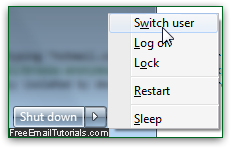 This last option is feasible, but can be cumbersome: every browser stores cookies, auto-complete data, and preferences inside your profile, which is tied to your Mac / Windows user account.
So, if you use Internet Explorer in one operating system account, you could also use it in another Windows account to check a completely different Hotmail account! No conflict, since these profiles are completely isolated by design. And that approach allows you to save your login in each browser - no need to ever sign out. Tip: see on the screenshot above - Windows allows you to be logged in to multiple user accounts at the same time. The "Switch User" command lets you quickly go from one account to the next.
Optionally Sign out of your account
When you are done checking your emails, closing the browser window will not logout of your account if you checked the "Keep me signed in" option. Otherwise, next time you visit Hotmail, you'll have to re-enter your credentials to access your inbox. Note that leaving a browser window / tab opened all day long will not create any problems. In fact, it will automatically let you know when new messages have arrived: the browser tab shows between brackets how many new emails have arrived since you last checked that folder (inbox, generally).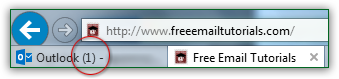
Note: to force your login session to end, you'll need to manually sign out of Hotmail - this guarantees that no-one can get back in.