Reset or retrieve a lost Hotmail password
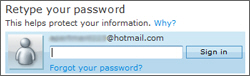 Our previous tutorial explained how to change your Hotmail password; this tutorial shows you how to get your password back if you have forgotten it. Hotmail comes with its built-in password recovery system, so that you can get access back to your account and emails, and optionally have the Windows Live Hotmail service send you a password reminder by email.
If you forgot your Hotmail password, only try 2-3 different passwords before going through the password recovery process: after too many failed attempts at logging in with a wrong password, Hotmail will temporarily lock your account, and prevent anyone from logging in.
This is designed to protect your account and profile in case someone tries to hack into your Hotmail account, or if anyone unauthorized by you tries to guess your password to login.
Recover your old password
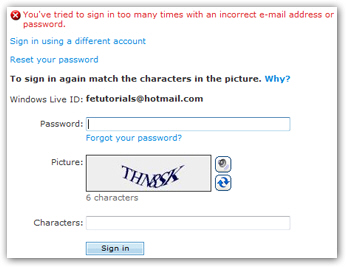 After entering too many password, Hotmail will display the following sign-in screen and error message: "You've tried to sign in too many times with an incorrect e-mail address or password".
At this point, you should try to recover your lost Hotmail password through the automated password retrieval system: it will ask you security questions whose answers are based on the information you supplied when you first signed up and created your Hotmail account.
If you provided accurate information when opening your Hotmail account, you will have no problems finding the correct answers to reset your password.
Password recovery options in Hotmail and email password reminder
Windows Live Hotmail offers you two ways to reset or recover your password: you will choose one of them, but this tutorial will show you how the two password recovery processes work. To get your password back, click on either the Reset your password link, or the Forgot your password? link further below: these both go to the same Hotmail password reset screen, including the ability to receive a password reminder by email: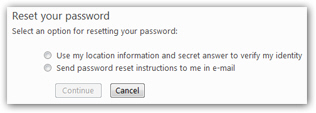
Windows Live Hotmail gives you two options in retrieving your password: you can either use the information you supplied when signing up for Hotmail, or have your Hotmail password sent to alternate email address you may have supplied during the signup process, when you first opened your Hotmail account (this is the email password reminder option).
Retrieve your Hotmail password by verifying profile information
The quickest way to retrieve your password is to click on Use my location information and secret answer to verify my identity, and click Continue. This only works of course if you supplied valid information during Hotmail signup (see below to have Hotmail send your password by email). The next screen verifies some of your profile information: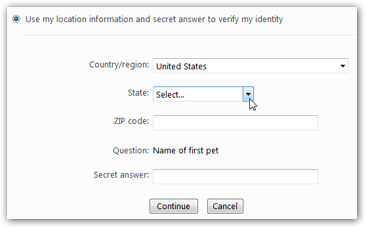
Hotmail will verify the country/region, state, and zip code where you claimed to live when you first opened your Hotmail account. Then, it will display the secret question you picked during the signup process (in the screenshot above, "Name of first pet"). Once you have successfully verified your location and filled in your secret answer, click Continue. You will have several chances to enter the right information immediately:
Hotmail displays the "This information must match the information you provided for your Windows Live account. Please try again" error message until you supply the correct info. The next section explains another way to reset/retrieve your Hotmail password:
Have Hotmail send you your lost password to an alternate email address
In the initial Reset your password screen, choose "Send password reset instructions to me in e-mail" and Hotmail will display the available email addresses it can use to email you your password. Choose one of them (obviously the email address for which you are trying to retrieve the password is not a good choice for the password reminder).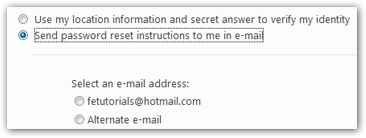
Click Continue: Hotmail will send password reset instructions to the selected email address!