Setup another email account in Hotmail
The new Hotmail lets you use it to send or receive emails from another email account; in this tutorial, we will show you how to setup another email account in Hotmail, which will allow you to send emails from Hotmail using either your Hotmail email address or another email account. With the next tutorial explaining how to receive emails in Hotmail from another email account, you will now be able to take care of all your email needs right from Hotmail.
You don't need anything as long as you already got a Hotmail account; if you don't have at least one active Hotmail account, see this tutorial that will show you how to quickly create a Hotmail account.
Setup another email account to use from Hotmail
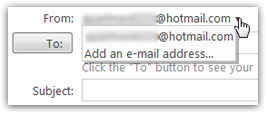 You may have seen in the past that when you send an email from Hotmail, your Hotmail email address is displayed as a dropdown menu in the email editor: this is because whenever you send an email, you have the ability to choose from which email account to send that particular email. By default, your Hotmail account will always be listed, but a couple of clicks will let you pick another From email address (provided you have setup that email account in Hotmail, which is what this tutorial explains).
Add a second email account in Hotmail to send from
As you saw in the screenshot above, the easiest way to add another email account in Hotmail is to choose Add an e-mail address from the From dropdown menu.
Another way is to click on the Options menu (middle top right of the Hotmail window) and choose More options; and then from the Manage your account screen, to click on the Send and receive mail from other e-mail accounts link: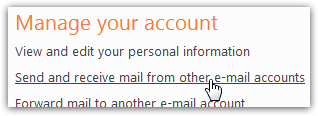
On the next screen, click on the Add another account to send email from link (if you previously added another email account to get its emails in Hotmail, it will be automatically added under that section as well, pending a verification email). Enter the email address from which you would like to be able to send emails from your Hotmail account, and click on the Send verification e-mail button: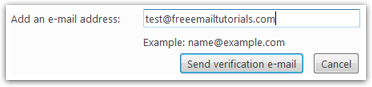
Because some web servers allow sending emails without authorization, Windows Live Hotmail is asking for a verification email to make sure that you do own that particular email account (since all email providers do require password authentication to access an email account).

Confirm your other email account with Hotmail
Within a minute or so, you should receive a verification email from your Hotmail email address to your other email account, whose subject line reads "Windows Live Hotmail: Verify your e-mail address": (again, sent from your own Hotmail address)
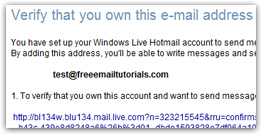 The Hotmail verification email contains a very long link that you need to click to confirm that you do own this other email account.
Click on the link inside that email, and -if necessary- go through the Hotmail login process again (depending on your Hotmail login settings, browser settings, etc. Hotmail may need to confirm your identity, usually by requesting your Hotmail password only). If Hotmail is able to confirm your identity, and that you own the second email account, you will see this confirmation page: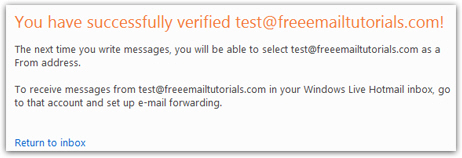
If you have not checked your ownership of the other email account, Hotmail will display the following message until you do:
Test your new email account from Hotmail
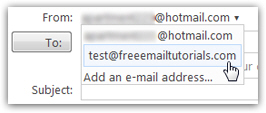 The next time you send an email from your Hotmail account, you will see another email address available from the From dropdown menu: by default, your Hotmail address is selected, but picking the other one will send that particular email from your other email account.
The From portion of the email headers will read something like this in emails you send from Hotmail, using another email account: "From yourEmailAccount@hotmail.com on behalf of YourName (yourOtherAccount@email.com)".
It will not be that puzzling, because your email recipients will see your name (as you have defined it when creating your Hotmail account), as the From sender name.
...And this is how you can very easily send email from your Hotmail account, using an alternate email account! Make sure you read our tutorials on receiving copies of emails from another email account right into Hotmail, and how to set these up to land in a custom email folder, or right inside your Hotmail inbox.