Hotmail Login
 Hotmail login — The only way to check your Hotmail emails is to be logged in: this prevent anyone else from accessing your Hotmail account, private emails, and profile. This tutorial explains all you need to know about Hotmail login, including special security measures to take and bear in mind when logging into Hotmail from a public computer (at the library or at school, for example). Windows Live Hotmail gives you several login options when you first sign in to Hotmail - we will discuss each of these, share a few tips, and give you an overview of what happens behind the scene before, during, and after the Hotmail login process. In this tutorial: Hotmail Login Screen - The Login Process - Login from a public computer
Tip: to explore all these and more tips, tricks, and security options, see our "Hotmail Sign in" tutorial - all on a single page!
Note on semantics - people often use the expression "Hotmail login" for two separate meanings: if someone asks you to give them your Hotmail login, they are referring to your user name (and password, which you should not give out) - in other words, your full Hotmail email address. The second usage of "Hotmail login", which is covered in this tutorial, is the actual actions and steps involved in logging into your Hotmail account. When we mean your Hotmail credentials, we will explicitly say "Hotmail user name" or "Hotmail email address".
Hotmail login screen
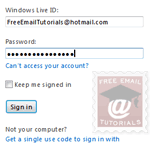
The first time you try to login to Hotmail from a computer, you will be presented with the login page we discussed in detail in our Hotmail sign in tutorial (form shown in the first screenshot, at the top of this page). It requires that you enter your credentials: full email address ending in "@hotmail.com" or "@live.com", and your account password. It also offers a "Keep me signed in" checkbox, which determines how you login in the future.
The Login process
Once you have entered your email address and password, and clicked the Sign in button, Windows Live Hotmail creates a "session", during which it will remember that you are logged in. This is why you do not need to login every time you check a new email: the server has opened a channel of communication with your browser, that will stay open for a limited time. This is also why, once you leave Hotmail alone for a while, you will be asked to log back in.
Here's the Hotmail login session timeout error message you may receive (due to inactivity, or indeed checking your emails from multiple computers) - "Please refresh your browser window. When you access your Windows Live Hotmail account from more than one computer, we ask you to sign in again to help keep your account private and secure."
 For your convenience, Hotmail puts at your disposal the options we just mentioned ("Remember me on this computer", and "Remember my password") - thanks to these (if you checked at least one of these checkboxes), you will automatically be logged back into your Windows Live Hotmail account, without having to go through the login screen.
If you opted to let Hotmail only remember your email address (the first checkbox, "Remember me on this computer"), you will still need to re-enter your password every now and then. These options are stored on your computer, more precisely in the "browser cache" - if you try to login to Hotmail from a different web browser on the same computer, your account information will not be present... which can be an advantage:
Login to Hotmail with separate email accounts, from the same computer
 The fact that your Hotmail login preferences are stored in your web browser means that if multiple people share the same computer, and each have their own Hotmail account, you and your co-users can avoid having to log out and log back in whenever you want to check Hotmail: simply choose to each use a separate web browser. Internet Explorer ships with Windows, and you can download free web browsers like Firefox, Opera, Google Chrome, Safari, or SeaMonkey. (These web browsers are listed in current order of popularity: choosing a popular web browser makes it easier to find help online if you have any problem.) All these browsers are available for Windows, Mac, and Linux - this allows you to have one Hotmail login per browser remembered! (And since this works at the computer level, you actually have one browser per computer remember any given login information.)
Features available with your email experience were based on the web browser you used to login to Hotmail: nowadays, most every feature works well, and is supported in all major browsers. The Windows Live Team regularly fixes bugs and improves compatibility, and we now find the experience identical regardless of the browser used to login to our Hotmail account. You could login, on the same computer, to 5 different Hotmail accounts just with the browsers we mentioned above: and there are many more browser variants!
JavaScript (and "cookies") required
While the list of browsers that support Hotmail increases all the time, there are older browsers that do not support "JavaScript" (for example). Since the Hotmail login screen checks the capabilities of your browser before letting you in, you may be redirected to a page that confirms that you can not login to Hotmail from your browser.
In reality, whether Hotmail's login screen lets you through or not, you will quickly realize if your browser is having problems. Unfortunately, unlike Yahoo! Mail, Hotmail does not offer the possibility of using a "Hotmail Classic" version of the service: so, if the login screen redirects you to an error page like the one above, you will need to use a (more) modern browser to log into your Hotmail account.
Login to Hotmail from a public computer
If you are logging into your Windows Live Hotmail account to check for new emails from a public computer (from the local public library or from your school, for example), you will ideally need to use the following precautions to protect your account security, and ensure that no-one else is able to login to your Hotmail account: (either by mistake or willingly)
- When you sign in from the Hotmail login screen, make sure that both checkboxes are unchecked; Hotmail should not remember your user name (email address) on that public computer, and should definitely not remember your password.
- Once you have checked your emails and no longer need to stay logged into Hotmail, click the Sign out link at the top right corner of the screen: this will automatically redirect you to the MSN.com homepage (a visual confirmation that you have in fact been logged out of your Hotmail account).
- Confirm that your information was not accidentally saved by the Hotmail login screen: sometimes, Hotmail will remember your information if the previous time you logged in, the options to remember email address and password were checked. To confirm that this did not happen because of a previous user's choice on the public computer you are using, go back to Hotmail.com (simply type "www.hotmail.com" in the browser's address bar, and hit Enter), to reach the Hotmail login screen.
- The web page should display the Hotmail login screen, with both the email address and password field blank: if Hotmail automatically logged you back in, go back to step 2 and manually log out again. If Hotmail displays your email address, but requests your password, it means that the login screen remembered your "Windows Live ID" from the last login session. If so, click the "x" button ("Don't remember this Windows Live ID").
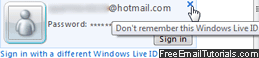
Behind the scenes, this deletes the "cookie" (small text file saved in the "browser cache" for future use) the Hotmail login screen previously set to remember your information: by clicking the Forget me link, you manually deleted that information, and next time someone goes to Hotmail.com, the login screen will ask for their email address and password, having erased any reference to your information! - That's it! You can now safely login to Hotmail from a public computer, knowing what precautions to take to prevent accidental (or malicious) access to your account.
An alternate solution is to create a new Hotmail account that you exclusively use for public places, and then setup mail forwarding for your primary Hotmail email address: this way, someone will at worse be able to access your secondary email address.
Tip: web browsers include a "privacy surfing" feature ("InPrivate" in Internet Explorer, "Private Browsing" in Firefox, etc.) This lets you to sign in to your Hotmail account without leaving any traces behind as soon as you close that web browser window: see our tutorial on how to anonymously login to your Hotmail account.
Automatically change Hotmail password every 72 days
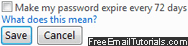
Yet another safety precaution is to have Hotmail automatically ask you for a new password every ~10 weeks (there is always a trade-off between security and convenience, but this guarantees that even if someone obtained your Hotmail login, it would become useless after a few weeks). Solution: regularly change your password to avoid seeing your account hacked! Also avoid checking your emails from untrusted computers, especially over "open" wireless networks.