Configure spam handling and junk mail settings in Yahoo Mail
Yahoo Mail is configured to handle spam / junk mail in the most efficient way possible; but, depending on your level of comfort and your personal preferences, you can customize these settings. This tutorial will show you how to change your spam settings, guide you through each of the options at your disposal. Blocked senders are covered in their own tutorial, and the final two options will be explained in a later tutorial (namely, the ability to block chat IDs, and the "Disposable email addresses" feature available to Yahoo Mail Plus subscribers).
Access Yahoo Mail's spam options
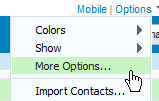 To access and customize your Yahoo Mail settings, click on the Options menu near the top right corner of a standard Yahoo Mail screen, and choose "More Options".
When the "General" option screen loads, click on the "Spam" link in the pane on the left side: Yahoo Mail will load all the settings available to spam and junk mail handling.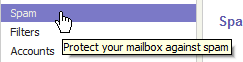
Yahoo Mail currently includes four types of spam settings.
Customize your Yahoo SpamGuard settings
"SpamGuard" is the name of Yahoo Mail's junk mail filtering system, which determines which emails to let reach your inbox, and which emails should be filtered and sent to your Spam folder.
Disable the junk mail filter or re-enable the junk mail filter
The first option, which is turned on by default, determines whether Yahoo Mail will filter any emails perceived as junk mail, and move them to your Spam folder; we recommend that you leave the "Automatically send suspected spam to my Spam folder" checkbox checked, since this is the safest option (especially since, as you'll see in a minute), images are (by default) only blocked from emails in your Spam folder.
Reset your junk mail filter
 Notice also that since Yahoo Mail learns which emails to move to the Spam folder, you can also reset your filter, and Yahoo will revert to using the default filter for all new accounts. Here too, we do not recommend that you click the Reset filter link, since Yahoo Mail will "lose" all data it learned about your account: in practical terms, this means that you would have to start all over again manually marking emails as spam, which Yahoo has since learned to automatically filter.
Customize how often Yahoo Mail should empty your Spam folder
The second Spam options Yahoo Mail offers is to let you decide how often you want your spam folder emptied (and all its junk emails permanently deleted). By default, Yahoo will empty your Spam folder once a month; you can also choose to have all junk mail automatically deleted every two weeks or once a week.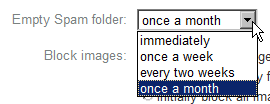
Because some legitimate emails might be accidentally filtered as spam, you should leave yourself time to find them. Since Yahoo now offers virtually unlimited space for your inbox and emails, letting your Spam folder fill up for an entire month should not be problem.
The first option, which is the least desirable, and one we do not recommend, allows you to tell Yahoo Mail to delete all spam emails right way (choose "immediately" in the Empty Spam folder dropdown menu).
"Block images" settings
Since linked pictures inside an email can be used by spammers to determine (1) if your email address is active, and (2) if their junk email was read, Yahoo Mail automatically hides pictures (does not load them) in emails filtered as spam.
When emails filtered as junk mail (those automatically moved inside your Spam folder) are selected, you will see the following information bar: "This message contains blocked images", and a "Show Images" button allowing you to display the pictures on a case-by-case basis:
…And here are the image-blocking options Yahoo Mail offers: they all offer a level of protection against spam and your privacy, and are ultimately a matter of preference.
- By default, the "Always show images, except in Spam folder" option is selected, and does what we just described.
- The second option, "Show images only from my contacts and certified senders", is slightly more restrictive, and instructs Yahoo Mail to automatically show images only for your contacts and "certified senders", or email senders deemed by Yahoo to be trustworthy. At any rate, the "Show Images" button will still be there for other emails.
- Finally, the last image-blocking setting Yahoo Mail offers is to "Initially block all images", which includes your contacts and all other senders. While this is, strictly speaking, the safest option in guarding your privacy, it may be both a bit overkill and inconvenient. Here too, you will always have the option to "Show Images".
Blocked email addresses
The Blocked Email Addresses settings are covered in their own tutorial: please see how you can email senders in Yahoo Mail (and have their emails never reach your account).
Blocked Chat IDs and Disposable Addresses
 Both of these settings will be covered in later tutorials: the Blocked Chat IDs has to do with using Yahoo Mail as a chat client, in addition to or instead of the full fledged Yahoo Messenger (Yahoo's IM chat client).
The Disposable Addresses are special and temporary email addresses you can use to protect your privacy, and hide your real email address. This feature is not available to the free Yahoo Mail, only to Yahoo Mail Plus subscribers: should you upgrade to Yahoo Mail Plus?
Save your changes in spam / junk mail settings
 Once you are done configuring your spam settings, click on the Save Changes button and return to the main Yahoo Mail window. (In case you forget to save your new options, Yahoo will display a confirmation message allowing you to save the changes or discard them.)