Disable the sent email messages confirmation screen in Windows Live Hotmail
By default, Windows Live Hotmail will display a "Your message has been sent" confirmation screen after you have sent an email; this is quite useful, since it only appears if the email was successfully sent to its destination. If Hotmail was not able to, you will receive instead an error message of some kind (the actual error messages vary based on the cause of the problem). But, since Hotmail will show you an error message when there is a problem sending an email message, it allows you to turn off the confirmation screen, and automatically redirect you to your inbox - otherwise, you will need to manually click on the "Return to inbox" link.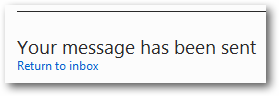
Why keep the email sent confirmation screen?
Most of the time, Windows Live Hotmail's message sent confirmation screen can be perceived as an annoyance, but here's an exception: when you send an email to a certain email address for the first time, the confirmation screen will actually offer a very quick way to add this person (email recipient) as a contact. Disabling this screen means that you will lose this handy feature - but you will of course still be able to add an email sender as Hotmail contact, or manually create new Hotmail contacts.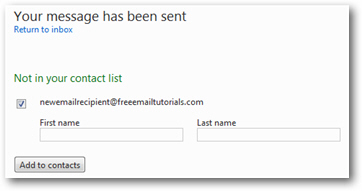
Turn off Hotmail's "Your message has been sent" message
Follow these steps to bypass this screen and directly go back to your Hotmail inbox:
- If needed, start by signing in to your Hotmail account; then, click on the "Options" menu (top right corner), and choose "More options":
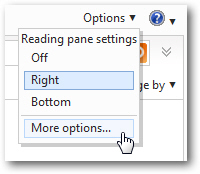
- In the Hotmail Options screen that opened, find the section labeled "Writing email", and click on the "Sent messages confirmations" link it contains.
- Here is a screenshot of the Windows Live Hotmail "Sent message confirmations" screen, with the default settings selected:
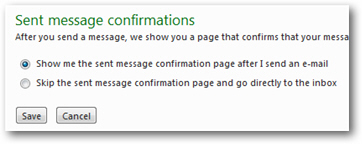
- By default, the "Show me the sent message confirmation page after I send an e-mail" is selected. To disable it and temporarily turn it off, select instead the "Skip the sent message confirmation page and go directly to the inbox" setting.
- Click on the "Save" button.
- Hotmail will apply the new setting right away, and bring you back to the main Hotmail Options page. The next time you send an email, you'll end up right back in your inbox - unless there was a problem, in which case Hotmail will let you know about it.
If you decide to re-enable the confirmation screen, just go back to Options > More options, click on "Sent Message Confirmations", and revert to the default setting.