Change Hotmail theme (and how to get more themes)
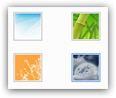 By default, Hotmail has the same appearance (or "theme") for everyone; but Hotmail also comes with 12 standard themes (including the default blue theme) and 6 dynamics themes, some of which can be switched to on-the-fly from the Options menu. Windows Live Hotmail themes do not change the functionality of Hotmail, nor the appearance of buttons and icons, but it adds some life to the experience with background image and colors. In this tutorial, will explain how to change theme for your Hotmail account, revert to the neutral theme, and introduce dynamic themes.
Hotmail themes are similar to what you may know as "Windows themes", which allow you to customize the look and feel of your PC. A Hotmail theme is a bit more simple, but it is the same principle.
Switch to another Hotmail theme
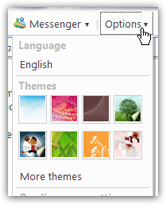 The easiest and quickest way to change Hotmail theme is to click on the Options menu in the middle top right of the screen.
The second section of the Options menu contains a Themes header: right below it, Hotmail displays 8 square icons with as theme previews; below these icons is a More themes link which we'll discuss in a bit. To preview a theme without applying it, simply move your mouse cursor above the theme preview icon, and leave it there for half-a-second or so: Hotmail will apply the theme, allowing you to see if you like it or not.
Move your mouse cursor away from the theme preview icon, and Hotmail automatically reverts to your current theme: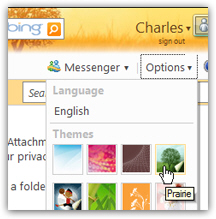
Behind the scenes, the Hotmail theme you pick is actually tied to your Hotmail account, not the computer on which you are viewing your emails. (Otherwise people at the library would end up with the Hotmail theme the last user picked!)
Apply a new Hotmail theme
Once you have previewed a Hotmail theme you like, you can apply it simply by clicking on its preview icon: as soon as you do, Hotmail applies the theme you clicked on, and will remember this selection. When you close your browser and come back to it later, from the same computer or a different one, you will see Hotmail with the latest theme you picked.
The screenshots below show you how a Hotmail theme is applied: in the left screen, we see your Hotmail home screen, and your standard Hotmail inbox on the right. These are shown with the beautiful "Moonlight" theme: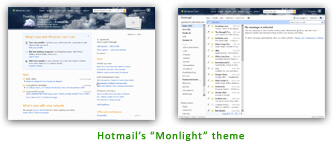
Theme-picking tip: because the latest version of the new Hotmail uses low contrasts and pastel tones, you will be surprised at how much oomph and substance a dark-colored theme will bring to an otherwise somewhat bland visual experience (our opinion). The "Carbon" theme (shown in the next section) and "Moonlight" theme (above) are our favorites!
Find more Hotmail themes
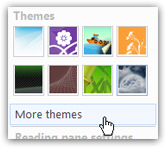 As we mentioned earlier, Hotmail comes with 12 standard themes, but the Options menu only displays 8 of them; to see all Hotmail themes currently available, click on the More themes link right below the theme preview icons.
This will load the Themes screen, which contains all of them.
As before, simply move your mouse above one of the theme preview icon, and Hotmail will apply it for your review within the second. Unlike the theme previews from the Options menu, clicking the theme icon on this screen applies the theme, but does not save it: you need to click on a theme and then hit the Save button.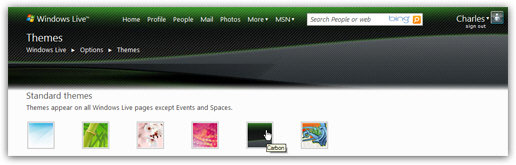
(If you change theme and try to navigate away from this page, Hotmail will notify you that the new theme has not been saved, and ask if you want to leave the page anyway.)
Using dynamic themes with Hotmail
We have so far only mentioned "standard themes", or static themes, that are a simple background image displayed in underlay. But Hotmail also supports dynamic themes, which change images based on the time of day and the weather.
To use a dynamic theme with Hotmail, go to Options > More themes, and scroll down to the Dynamic themes section: there are currently 6 such themes.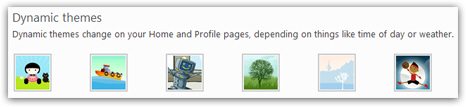
Each dynamic theme's preview icon will change every 3 seconds to let you preview some variants of the theme. The process works the same way: move your mouse over the dynamic theme icon to preview it; to accept and apply the dynamic theme you liked, click on its icon, and click on the Save button.
Creating custom themes for Hotmail
 While the following is not insider's knowledge, it is not difficult to imagine that Hotmail would sooner or later let you use custom images as themes. The latest version of the Firefox browser introduced "personas", and does just that (as does the Opera browser). Stay tuned for news on Hotmail themes and custom themes; we will update this tutorial as soon as we hear something concrete! (Custom themes would at least be very feasible as standard themes.)