Add a website to your Favorites / bookmark all tabs in Internet Explorer
As you surf the web, Internet Explorer lets you add websites and web pages to your Favorites for easier retrieval later on; in this tutorial, we will explain how to add a website to your Favorites (single bookmark), and how to add multiple websites at once to your Favorites (bookmark all tabs). All this is done through the Favorites menu, but Internet Explorer 7 and Internet Explorer 8 also let you use the Favorites Center for the same purpose. We will show both approaches to creating bookmarks, to make this tutorial apply to all versions of IE.
Adding a website to your Favorites has not changed much since Internet Explorer 5; while this tutorial is written with Internet Explorer 8, most the material also applies to Internet Explorer 7, 6, 5.5, or IE 5.
Add a website to Favorites (bookmark the current web page)
When you come across a website you would like to save to come back for a later visit, you can bookmark it by adding it to your Favorites; in all versions of Internet Explorer, click on the Favorites menu (or press Alt+A if the menu is hidden), and choose "Add to Favorites". The following popup will open: (screenshot shows Internet Explorer 8)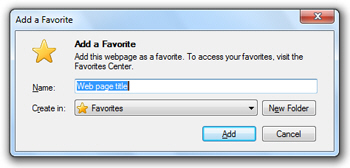
Optionally type a new Name for the new Favorite; by default, Internet Explorer uses the current web page's title. Unless you create a Favorites folder for the bookmark, or choose a pre-existing Favorites folder from the "Create in" dropdown menu, Internet Explorer will add the new Favorite in the menu itself (not a subfolder). Finally, hit Enter or click the Add button to create a new bookmark to the website / web page.
Press Ctrl+D to add a website to your Favorites.
Where was the new Favorite added?
Internet Explorer automatically adds new bookmarks at the bottom of the Favorites menu; in Internet Explorer 7 and Internet Explorer 8, you can also see the new Favorited site displayed at the bottom of the "Favorites Center" (shown on screenshot).
A separate tutorial explains how to rename Favorites and Favorites folders in Internet Explorer.
Add all tabs to your Favorites (bookmark all open tabs at once)
Internet Explorer also lets you add all open tabs as Favorites inside a new folder; this is especially useful when you are working on a research project of some kind, or are interrupted and want to save all opened web pages as bookmarks. This feature is included in Internet Explorer 8 and IE 7. Either click on the Favorites menu (or press Alt+A to display it), or click on the Favorites Center button (screenshot below).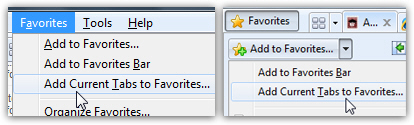
From the Favorites menu, choose "Add Current Tabs to Favorites" - if you use the Favorites Center, click on the "Add to Favorites..." dropdown arrow, and choose "Add Current Tabs to Favorites..." Both approaches achieve the exact same result, Internet Explorer will next display a dialog to get the name of the folder in which you want to store these bookmarks: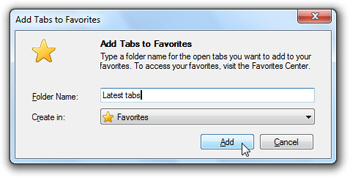
Type the name of the folder in which all tabs will be favorited, and click the Add button. (To save these tabs inside another folder, simply choose a Favorites folder from the Create in dropdown menu - your new Favorites folder and tabs will be saved there.)