Change default email font in Outlook 2007
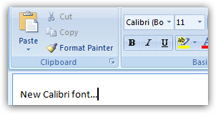 By default, Outlook 2007 uses the new "Calibri" font that ships with Office 2007; it uses it new emails, email replies, and mail forwards. While this font is very readable, Outlook lets you change the font inside an email, and customize which font should be used for all emails. You can even use multiple fonts, font sizes, text colors, etc. inside the email. In this tutorial, you will learn how to change the font settings of the current email, and how to configure Outlook 2007 to use custom font settings for all email messages. The only exception is if your copy of Outlook is configured to use "plain text" emails: if this is the case, we will also show you how to change your settings to use "HTML" or "Rich Text", which unlike "Plain Text" emails, do support all kinds of text formatting options (many of which you will probably never use!)
Switch from plain text emails to rich text or HTML
First, confirm that Outlook 2007 is currently set to use rich formatting; (if you already know that it is, skip to the next section: change default font). To check your text formatting and font settings, go to Tools > Options, and click on the Mail Format tab. In order to be able to change font and customize text formatting in emails, the Compose in this message format should either say "HTML" or "Rich Text"; if it says "Plain Text", change it to "HTML".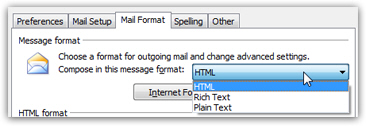 Changing email format to "Rich Text" makes Outlook 2007 use Word as the default email editor (if installed). This has drawbacks with both message file size and compatibility with some other email programs. If Outlook 2007 was not set to Plain Text, just close the window or hit Cancel to return to Outlook; otherwise, make the change and click OK.
Change font settings for individual messages
To change the font of the current email, simply use the basic commands on the Home tab of the ribbon: these give you access to font family, font size, text alignment, bold, italic, underline, as well as text color and text background color: ("highlight color")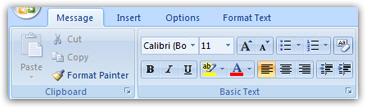
Advanced text formatting and font settings
For more advanced font changes and text formatting options, click on the Format Text tab. The plethora of text formatting tools available under the Text Formatting tab are more reminiscent of a full-fledged text editor like Word 2007 than a mere email application like Outlook 2007. Select the text whose you want to change and pick a different font family, size, etc. To change the entire email's font, select all the text (the keyboard shortcut is Ctrl+A).
As seen in the Add a signature to your emails tutorial, the automatic email signature in Outlook 2007 is regular text: this means that you can also change its font settings, as you would for regular text.
Once you are done, you can send your email; the message you compose will revert to the default font family, text size, and colors. The next section explains how to change the default font (not just for a single email, but for all emails you compose from thereon).
Quick warning about email fonts: while Outlook 2007 lists all the fonts currently installed on your computer, keep in mind that not everyone will have the particular font you choose; in that case, the recipient's email program will use another font instead. If you absolutely want a certain font to be used, the best option is either to insert an image in the email, or to attach a file to the email (like a PDF, with fonts embedded - which guarantees that everyone will see the fonts you intended to use, and not substitutes).
Change default font settings for Outlook 2007
We will now show you how to change the email font for all emails you create in the future (new emails, replies, and forwards). Go to Tools > Options, and select the Mail Format tab in the dialog that opened. Then, click on the Stationery and Fonts button.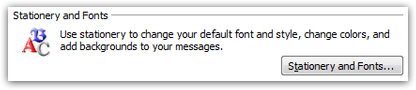
Outlook 2007 allows for two sets of font settings and text color: under New mail messages, you can customize the font and colors for new emails you create. Under Replying or forwarding messages, Outlook lets you pick and different font for these two cases - the default settings are shown below: 11-point Calibri font, black for new emails, and medium blue for replies and forwards: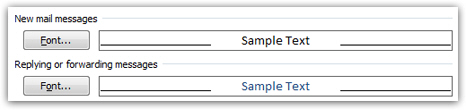
Click the appropriate Font button to change your settings for all future emails; once you are done, click OK until you are back in Outlook's main window. To test that your new font settings have been applied, just compose a new email: it should reflect the new font family, font size, text color, etc. you just configured!
Don't forget to also edit your email signature formatting, if it uses a different font and or color.