Free Email Tutorials › Windows › Set the new email sound in Windows 7 ("New Mail Notification")
Set the new email sound in Windows 7 ("New Mail Notification")
By default, Windows 7 will play a sound when new emails arrive; this is an operating-system-wide that you can customize and change, and will be respected by many email programs, and not necessarily just the ones by Microsoft (Outlook 2007, Windows Live Mail, etc.) In this tutorial, we will explain how to change the Windows 7 new mail sound in a few simple steps.
Customize the new email sound in Windows 7
Follow these steps to access and customize your program event sound settings:
- Open the start menu, and type "system sound" in the search field; when the search results are displayed, click on the "Change system sounds" link.
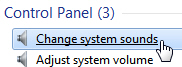
- Windows 7 will open the "Sound" dialog, which lets you configure your sound settings on an individual basis, including the sound file that plays when new emails are downloaded to your computer by your email program.
- The Sounds tab contains several options; under "Program Events", you will find a listing of situations in which a sound can be triggered for Windows 7.
- Scroll down until you see an entry labeled "New Mail Notification" - this is the sound Windows 7 will use for new emails arriving from the mail server:
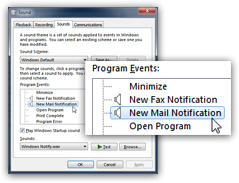
- To preview the current New Mail Notification sound, select it in the listing, and click on the "Test" button: Windows 7 will play that sound, so make sure that your speakers are turned on. Tip: If you do not recognize this sound file as being the one that plays back when you receive new emails, this means that your email program is set to use its own new mail sound instead of the one specified in Windows 7. In that case, check your mail program's options and settings to change the sound for new mail.
- To change the email sound for Windows 7, select "New Mail Notification", and click on the "Browse" button: by default, this will open the "Media" folder, where Windows 7 stores its own sound files.
- Note: you do not have to use any of the sounds that ship with Windows: you can use your own, as long as they are in the "
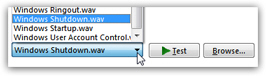
WAV" sound file format (you cannot use an MP3 file, for example, unless and until you convert it to WAV). - If you are ok using one of the system sounds, you can skip the next step, and instead choose a sound file from the "Sounds" dropdown menu:
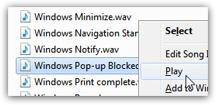 To test a sound before using it as New Mail Notification, just right-click on a WAV file, and choose "Play" from the context menu, as shown on the screenshot: this will launch Windows Media Player, and let you hear that sound.
- Once you have found the ideal new email sound, double-click on it to select it.
- You have successfully customized the new mail sound in Windows 7! Now click OK to apply the new setting and return to Windows; the next time new emails are downloaded, the sound file you just chose will play instead of the original one.
As a side note, if you want to restore the original email sound (Windows 7 default), the Windows Notify.wav" - this is the same file Windows 7 uses for new faxes.