Facebook Sign up: create a Facebook account or get a new profile
The first step to get your own profile is to go through the Facebook sign up process to create your account; fortunately, this is one of the shortest sign up form around, and unless you fill out a lot of optional information (we'll tell you which is), you will be up and running in, literally, a single minute. (Even if you do decide to enter all details about your profile, the entire signup should take less than 5 minutes.) Since the privacy settings allow you to make your Facebook profile very private, you have full control over what information you enter during account sign up will be public once you created your profile.
Tip: while all this tutorial stays current, we've launched a separate “Create Facebook Account” website, with more details for beginners, and screenshots that reflect the new interface!
Sign up for your own Facebook account and profile
Follow these steps to setup a Facebook account for yourself:
- Start by going to
www.facebook.comin your web browser. If someone is already signed in, just click on the "Account" dropdown menu in the top right corner, and choose "Logout". You will now see the Facebook homepage, which looks like this: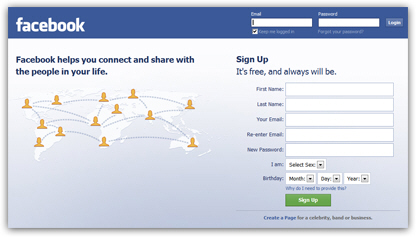
- The portion at the top allows existing users to sign in to their Facebook account; right below, on the right, is the Facebook Sign up Form. As you can tell, it only collects 7 pieces of information for your new account and profile.
- Before you start entering new profile information, know that the email address must be valid, since this is how Facebook will contact you when needed, where you'll receive notices from other Facebook users, and as important, this is the email account Facebook will use in case you forget your password.
- The rest of the sign up form is what other Facebook users will see on your profile, so keep that in mind when you create your new account. As you'll learn in later tutorials, this information can be changed later on, and you can make your Facebook account profile as private or public as you want through "privacy settings".
- Now, enter your "First Name", "Last Name", "Your Email" (then confirm that there were no typos by re-typing it under "Re-Enter Email").
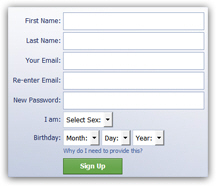
- Under "New Password", type the password you will use to login to Facebook: since the password is not entered twice for confirmation, make sure that Caps Lock is turned off on your keyboard (in other words, don't mistakenly type your password in uppercase letters), and avoid any errors.
- Finally, choose your gender from the "Select Sex" dropdown menu - this will be used on your public Facebook profile, for example, to determine if it should read "Facebook user name updated her profile" or "Facebook user name updated his profile".
- Finish by entering your date of birth ("Birthday") in the Month / Day / Year dropdown menus. You can hide your birth year later on - and even hide the DOB altogether.
- Click on the "Sign Up" button to launch the Facebook account creation process.
New Facebook Profile Verification
Facebook will display a verification screen to prevent automated sign up (spam). Type the characters shown on your screen, review the Facebook Terms of Use and Privacy Policy (links displayed below the Sign up button), and click on the "Sign Up" button once more: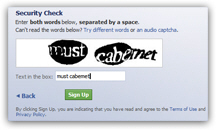
Your Facebook account was created when you successfully entered the verification code; you can now click on the "Skip this step" link several times if you want to complete your profile sign up without entering additional information (which you can add to your account later on), or supply these details in the next three steps.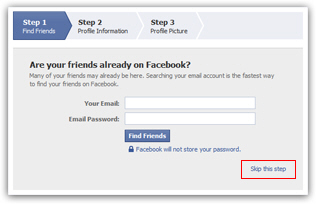
These three steps, all of which can be skipped at this time, include:
- "Find Friends" - Facebook will use your email address and password to login to your email account and retrieve your address book contacts, and see if these people are already on Facebook.
- "Profile Information" - This optional step collects your High School, College/University, and Employer information.
- "Set Your Profile Picture" - you can leave a blank picture for your Facebook profile, or upload a photo from your computer to use in your account.
Finalize your new Facebook account sign up with email confirmation link
Whether you skipped these steps or entered all the information they collected, the Facebook account sign up process is near complete: all you need to do is confirm that you do own the email address you supplied. The first time you login to your Facebook account (which happens at the end of sign up), you will see a notice at the top of the screen that reminds you that you need to check your emails and click on the confirmation link you received from Facebook: this email has "Just one more step to get started on Facebook" as subject line.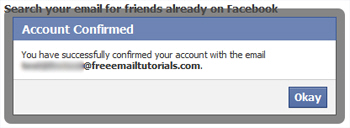
Let's now show you how to change your profile picture and add friends to your new Facebook profile. To keep yourself self, also make sure to read our Facebook Sign in, Facebook Login, and Facebook Logout tutorials.