Setup mail forwarding from Yahoo Mail to another email address
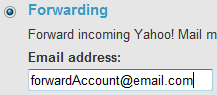 Whether you regular login to your Yahoo Mail account, you can setup email redirection, or mail forwarding, for your Yahoo email address. Note that this feature is currently only available to Yahoo Mail Plus subscribers, a topic we'll cover in a later tutorial. And, unlike mail forwarding in Hotmail, Yahoo's version of it is an exclusive choice: either all your emails go to your inbox, or all your email messages are forwarded to another email address (Hotmail lets you optionally keep a copy of the forwarded emails inside your inbox).
Add an email forward in your Yahoo Mail account
At this time (March 2010), Yahoo Mail still goes through Yahoo Mail Classic to setup some of your account settings: this includes mail forwarding.
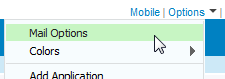 To setup mail forwarding in Yahoo Mail, go to the Options menu, and choose Mail Options; from the Yahoo Mail settings page, click on POP & Forwarding in the sidebar, on the left of the screen. Then, click on the Set up or edit POP & Forwarding link. A new window to Yahoo Mail Classic will open.
The POP Access & Forwarding screen contains two sections: either you receive your emails to your Yahoo inbox, or have them forwarded to another email account (mail forwarding). Click on the Forwarding selection, and enter the destination account in the Email address text field. This can be another Yahoo Mail account, or an entirely different email address - Yahoo does not place limitation on mail forwarding domains (the part of the redirection email address that comes after the "@" symbol).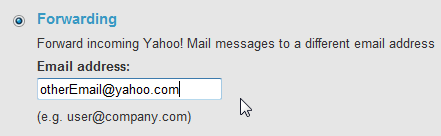
Since Yahoo cannot verify the validity of the redirection email address you have entered, double-check that it is correct, and does not include any typo!
Once you are done, click on the Save button: mail forwarding isn't quite finished yet, and Yahoo will redirect you to the "Verify Account" screen: this avoids mistakes, and allows you (and Yahoo) to confirm that the destination email address is working and yours.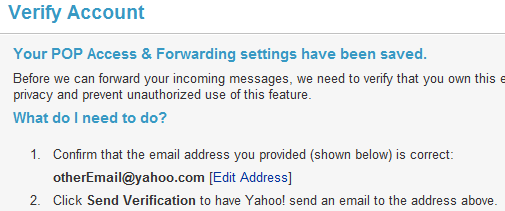
Also notice that the Verify Account screen includes an Edit Address link: click on it to return to the previous screen and choose a different mail forwarding address. Click the Send Verification button once you are ready, and Yahoo Mail will display the following page.
Verify your mail forwarding email address with Yahoo Mail
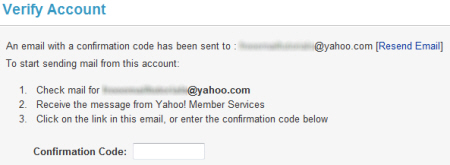
This screen confirms that an email has been sent to the email forwarding address you supplied: logon to that other email account to retrieve the Confirmation Code Yahoo sent you; if you do not see Yahoo's email in your inbox after a few minutes, click on the Resend Email link to generate a new confirmation email sent to the other email account.
The title of the email is "Yahoo! Forwarding Email Confirmation", and looks like this: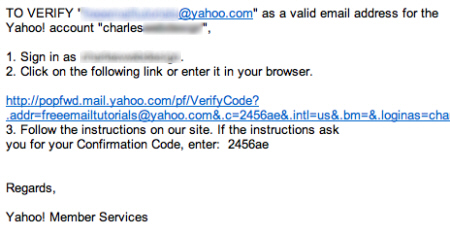
The confirmation email contains both the code, and the link to the page to which you will go to enter the confirmation code (you can also copy the confirmation code directly, and paste it inside the Confirmation Code textbox of the Verity Account screen we saw earlier.
Click on the Verify Account button; you may have to re-enter your Yahoo Mail password, and will be redirected to the original screen that now includes the destination email address of your choice. You have setup mail forwarding in Yahoo Mail!
Disable mail forwarding from your Yahoo account
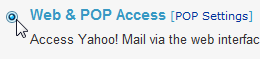 You can decide at any time to disable mail forwarding on your Yahoo emails; to do that, just go back to Options > Mail Options, click on POP & Forwarding, and change the selection from Forwarding to Web & POP Access. Finally, click Save, and mail forwarding stops immediately, no verifications needed.