Report an email phishing scam in Hotmail
There are two kinds of unwanted emails you may receive in your Hotmail account: the first type, which is annoying but often harmless, is "spam" (or "junk mail"). The second type is potentially very dangerous, and is called "Phishing / Scams".
Windows Live Hotmail will automatically detect and block most phishing scam emails; if it is not recognized and moved to the Junk Folder, the unsuspecting user may end up giving away bank login information or other sensitive data. A phishing scam email pretends to come from a trusted source like your bank, mortgage company, eBay, PayPal, etc. - but is in fact sent by scammers who created a website that looks like the trusted institution, and can fool you into sharing personal or financial information. This tutorial helps you detect a phishing attempt, and explains how to report any phishing scam to the Hotmail team.
How to recognize a phishing scam email? Avoid being fooled.
Here are a few tips you can use to detect a phishing scam email in your Hotmail account:
- The "From" email address does not match the company it claims as coming from
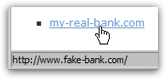
- When you move your mouse above a link, the link goes to a URL different from that shown (you can see that by looking at the status bar, alongside the bottom edge of your web browser window), like this:
- The email message comes unexpectedly: if you need to check your bank account, for example, don't use a link inside an email: directly type your bank's website address ("URL") inside the address bar.
As example, the only time you should enter your email address and password is at Hotmail sign in, not by clicking a link in an email.
Report an email as phishing scam from your Hotmail account
When you receive inside your Hotmail account an email that clearly is a phishing attempt, you can (and should) report it: this allows the Hotmail team to improve their automatic detection mechanism to prevent these scams from reaching user's inboxes altogether.
Here is how you report an email phishing scam in Hotmail:
- Check the email's checkbox, to select it
- Click on the "Mark As" menu
- Choose "Phishing scam"
- A tooltip will be displayed when you leave your pointer above it, that reads "Report a spammer who asks for private information" - but often, the email itself doesn't ask for the information, the website it links to does.
- Hotmail will behaves just like it does when you report spam or junk mail: it will remove the email, report it as phishing scam behind the scenes, and leave you to your email tasks inside your inbox.
- Note that an email you report as phishing scam is immediately deleted from your account - it does not go to the Junk Mail folder, or the Recycle Bin (Deleted folder).
This is how simple it is to report phishing scam emails in Hotmail. You should do it whenever you come across a phishing attempt, since this helps make Hotmail safer for all of us!