Hotmail Messenger Download
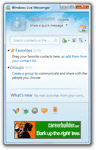 The Hotmail Messenger download is free; the previous tutorial gave you an overview of Hotmail Messenger - this tutorial will explain how to download Hotmail Messenger, and guide you through its installation.
We will also show you what happens the first time you launch Hotmail Messenger, its main window, and a couple of quick options to select after the first run to make your Hotmail Messenger installation and use more enjoyable. Let's get started, and show you how to download Hotmail Messenger from the Windows Live website.
Note that this tutorial uses the terms "Hotmail Messenger" and "Windows Live Messenger" interchangeably: the official new name of Hotmail Messenger is actually Windows Live Messenger, and this is how the official documentation will refer to it (and the name under which it will appear in your start menu after the installation is complete). But for convenience's sake, and legacy reason, we will hereon simply refer to it as "Hotmail Messenger".
Download Hotmail Messenger
Your Hotmail Messenger download is completely free; for security reasons, make sure to only download Hotmail Messenger from a trusted location: we recommend that you only consider downloading Hotmail Messenger from its official website, and the Windows Live team.
Official Hotmail Messenger download from here.
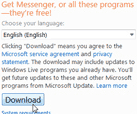 Once on the official Hotmail Messenger download page, choose your language of choice (English is selected by default), and click the large Download button visible on the right of the page.
Do not Save this download: instead, choose Run - there is no need to save, because the program you are about to download is only a very small installer (about 1 megabyte), which itself will download the Windows Live programs you select.
Download the Hotmail Messenger installer
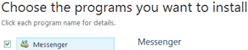
Once the installer has finished downloading and launches, select Messenger checkbox under the Choose the programs you want to install header. Now, click Install. The installer will now download Hotmail Messenger: depending on your internet connection speed, this may take a few minutes. After the installer has finished downloading Hotmail Messenger, it will automatically install it on your computer.
You will know that the installation was successful, and that Hotmail Messenger is now on your computer when you see the "You're almost done" screen. Choose to change or keep your browser's search engine and homepage, and click Continue.
Tip: Windows 7 will now automatically notify you of updates to the Hotmail Messenger and other software of that Suite. If you want to install updates as they come out, you may need to check for "Optional Updates" - as shown below, just check the "Windows Live Essentials 2011" checkbox, and Windows Updates will seamlessly install the upgrades for you:
Hotmail Messenger successfully downloaded and installed!
Hotmail Messenger will now launch in a window titled "Windows Live Messenger" (remember, this now is the official name of Hotmail Messenger.)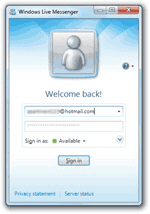
This concludes our tutorial on the Hotmail Messenger download process; it only took a few clicks, and you are now ready to start using the latest version of Hotmail Messenger, Windows Live Messenger, alongside Hotmail!