Skip Hotmail Today (Windows Live "Home" page) and directly load your inbox
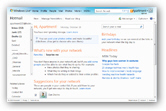 By default, Windows Live Hotmail does not go directly to the inbox: it loads instead the "Windows Live Home" page, a summary screen that displays your email folders, Hotmail news, contact suggestions, social updates (connected Facebook accounts' activity), etc. Since most users prefer to go straight to their inbox and emails, Hotmail lets you customize this option very easily. This tutorial will explain how to configure Hotmail to directly load your inbox after you log in, and skip the Hotmail Today screen altogether.
Note: Hotmail recently added a feature that lets it "remember" what screen you were last looking at when you left your Hotmail account (by closing the browser window, for example). So, if you last looked at your Hotmail inbox, next time you go to Hotmail.com, your inbox would automatically load. The "Skip Today" feature discussed in this tutorial is different, and lets you permanently go directly to your inbox (at least until and unless you decide later on to turn it off).
Configure Hotmail landing page for your account
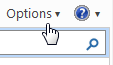 To make Hotmail skip the Hotmail Today screen and go directly to your inbox, click on the Options menu in the top right corner: then click on "More Options" to load all configuration settings: this will load the Hotmail Options screen that contain the majority of customization settings. Locate the section labeled "Customize your email", and click the "Today page settings" link near the bottom of that section.
Hotmail's Today Page Settings
The Today Page Settings screen now opens, and offers you the following choices: 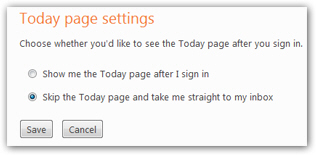
By default, the Show me the Today page after I sign in is checked; if you want to go directly to your inbox next time you log into Hotmail, check the second option, "Skip the Today page and take me straight to my inbox".
 Once you have configured the Today settings as you want them, click the Save button to validate your change and return to the Hotmail Options screen you came from. Once there, click on the Go to inbox link in the top left corner of the navigation to go back to your Hotmail inbox.
Tip: short of setting Hotmail as your homepage, there's an even quicker way to load your inbox. You can add Hotmail to the Windows 7 taskbar or start menu: this lets you launch your emails with a permanent browser shortcut to your inbox!
Manually accessing the Windows Live Today page
 Since Hotmail regularly updates and upgrades its features, make sure to visit the Hotmail Today page now and then: that page started showing contacts in your network and other useful Windows Live related announcements at one point, and you would have missed the new feature, had your Hotmail account be configured to skip Hotmail Today altogether.
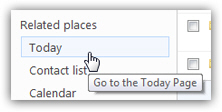
To manually visit the Hotmail Today page, locate the list of link displayed below your email folders, labeled "Related places": click on Today, and Hotmail will bring you to that page (without changing your setting to automatically skip that page in the future of course).