Free Email Tutorials › Web Browsing and Email › Change the appearance / switch theme in Firefox
Change the appearance / switch theme in Firefox
By default, after you download Firefox and install it on your computer, it will be configured with a default "skin", or "theme", appropriate for the operating system you are using (Windows, Mac, Linux) - this is called the "Default Theme", and each operating system has it. But Mozilla Firefox was the first mainstream web browser to allow you to completely change its appearance by downloading one of the many (free) themes available from the Mozilla.com website. And once you have installed a theme for Firefox, you can switch to it whenever you feel like it. This tutorial explains how to change the current Firefox theme.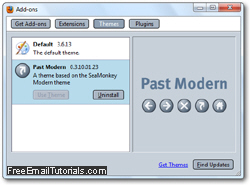
Change theme in Mozilla Firefox
Follow these simple steps to change the current theme in Firefox:
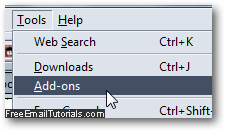
- We assume that you are already inside the Mozilla Firefox web browser; click on the Tools menu, and choose "Add-ons". This is an umbrella term Firefox uses to refer to all additional functionality you have added to it, including "Extensions" (like a toolbar), "Plugins" (like the Flash player), and of course "Themes", which allow you to completely customize the visual appearance of the entire browser:
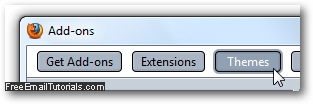
- The Add-ons window will open, and contain several tabs at the top: select the "Themes" tab to view a (scrollable) listing of all the themes you have installed so far for Firefox on this particular computer (under that user name, that is, since Firefox stores user preferences on a user-by-user basis, not in a central location for all users).
- The appearance of the "Themes" tab in the add-ons window will of course depend on the current theme you are using (in our case, the "Past Modern" theme, a nostalgic trip to the last days of Netscape, which introduced this wonderfully understated theme!)
- Click on any of the Firefox themes currently installed, and you will see a preview screenshot (typically) displayed on the right hand side. Once you have found the theme you want to start or resume using, click on the "Use Theme" button that appears in the theme listing (if you decide not to switch, and to keep using your current theme, just press the escape key ("Esc") to return to Firefox).
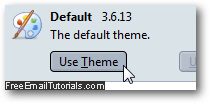
- Notice that as soon as you click on the "Use Theme" button, an information bar appears at the top: this because Firefox needs to restart before it can apply the new theme you selected: just click on the "Restart Firefox" to change theme:

- Theme Change Tip: To cancel switching theme at that point, just re-select the original theme you were using, and click on its "Use Theme" button: Firefox will hide the "Restart" notice, since you are no longer changing theme.
- Within a few seconds, depending mostly on the speed of your computer, Firefox will re-open, this time with its appearance completely changed, using the new theme you want to switch to. Regularly changing themes in Firefox doesn't "hurt" stability or anything, so feel free to switch theme now and then for a refreshing change!