Set or change the default email account in Outlook 2007
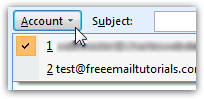 Outlook 2007 lets you add as many email accounts as you want; but it will automatically pick the first email account you added as "default email account" - in other words, when you compose a new email, this default email account will automatically be used as the "Send From" email address. If the first email account you added isn't the one from which you want to send emails from most often, you are in luck: as you'll learn in this tutorial, Outlook 2007 lets you customize which email account should be used as default. (Screenshot shows how you can switch "From" account on-the-fly.)
Change your default account
To set another email account as default for Outlook 2007, go to "Tools > Account Settings": Outlook will open a dialog, with its E-mail tab automatically selected. this tab lists all the email accounts you have currently setup inside Outlook. Notice that the one listed at the top (default email account is always listed first), reads under the "Type" column an additional comment, indicating which account is currently the default: "(send from this account by default)".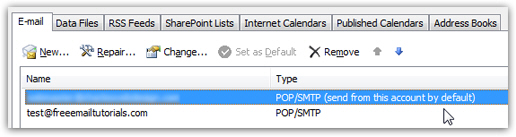
Tip: another clue that the email account selected is the current default account is that the Set as Default button is disabled (grayed out).
 Click on the email account you want to set as default, and click on Set as Default. Four things will happen: the Set as Default button is now disabled, the selected email account has moved to the top, and Outlook has added the "(send from this account by default)" notice - and of course removed it from what was previously your default email account.
But, most importantly, the selected email account has now become the default email account: click on the Close button to return to Outlook, and compose a new email to test your new settings. Click on the Account dropdown to see which email account Outlook 2007 is automatically using to send blank emails: the email account you have just set as the default should be the one with a checkmark next to it.
Changing default email account doesn't block other accounts
A quick note: as shown from the screenshot above, all you need to do to send an email from a non-default email account is to click on the Account button, and choose the email address from which you want to send that particular email.
Outlook automatically selects the correct email account
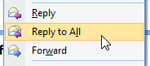 Your default email account settings in Outlook 2007 only affect new emails: when replying to an email, the email address to which the email was sent will automatically be picked for the reply, regardless of default account. Likewise, with email forwards: Outlook will use the email account to which this particular email was originally sent.