Create an email account in Outlook 2007
This free tutorial explains how to create an email account in Outlook 2007: while separate tutorials will show you how to setup specific email services, we will now show you how to setup a regular POP3 or IMAP email account. Outlook 2007 introduces a new email account setup wizard that drastically simplifies adding email accounts, which means that in most cases you will only need to know your email address and password to let Outlook automatically take care of everything for you, behind the scenes. We will also show you how to manually configure your email account if Outlook fails.
Add a new email account
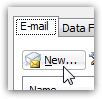 To add or create a new email account in Outlook 2007, go to the Tools menu, and choose Account Settings. A "Account Settings" dialog will open, with the E-mail tab automatically selected. Click on the New button to setup a new email account.
Outlook will open the Add New E-mail Account wizard: leave the "Microsoft Exchange, POP3, IMAP, or HTTP" radio button checked, and click on the Next button to proceed.
The second step of the new email account setup wizard is brand new: "Auto Account Setup". This is the easiest way to create your email account, and all you need to do is enter your name (as you want it to appear when you email someone from Outlook 2007), then enter your full email address (in the form "userName@email.com"), and finally enter your password twice (since characters are hidden, this lets Outlook make sure that you typed the correct password). We will now see if Outlook can setup your new email account on its own.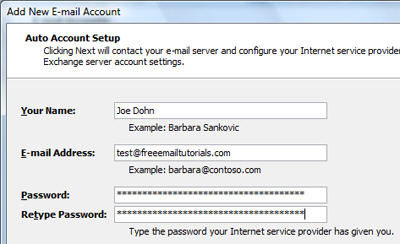
Leave "Manually configure server settings or additional server types" unchecked: Outlook 2007 might be able to automatically configure all your email account settings! Click Next.
Outlook 2007 auto-configuring your email account
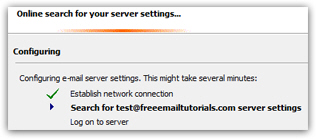 Outlook will now try various mail server configuration settings to spare you from entering all this manually to create the email account; if your mail server is customized for higher security than the normal, Outlook 2007 may fail. Otherwise (as is most often the case), your email account will have been configured for you within a few seconds. If Outlook failed to automatically setup your email account, you just need to tick the checkbox to manually configure your email account, and click Next to enter your account information. You can then manually test your new email account settings.
Caution: increasingly often, internet service providers ("ISP") restrict access to "port 25" (conventionally used for outgoing mail). If that's the case, confirm ports and encryption settings from your mail provider.
Once your new email account was successfully setup, click on the Finish button. Before using your email account though, know that by default, Outlook 2007 will remove messages from the mail server (download copies to your computer and delete originals from the server).
- If the email account you just added in Outlook is used by others, they will no longer see any emails Outlook has downloaded (and deleted from the mail server).
- If you check your email account from multiple computers, you will want to leave a copy of your email messages on the server so they remain available to your other machines.
- Leaving a copy of your emails on the mail server is the "lazy person's way to back up your email account"! - and a technique we use to keep our emails safe. This way, you always have your emails online (on the mail server) in case your computer is stolen, Outlook's PST file becomes irrecoverably corrupted, etc.
Make Outlook 2007 leave a copy of your emails on the server
To instruct Outlook 2007 to download copies of emails, and leave the original messages on the mail server, go to Tools > Account Settings, and double-click on the email account you want to customize. From the Change E-mail Account window that opened, click on the More Settings button, which in turns opens the Internet E-mail Settings dialog: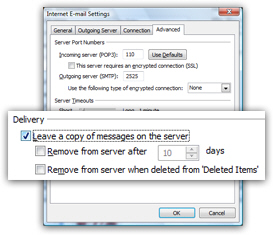
Click on the Advanced tab, and tick the "Leave a copy of messages on the server" checkbox to prevent Outlook 2007 from deleting your downloaded emails from the mail server.
You then have the option of allowing Outlook 2007 to delete from the server emails that are move than X days old, and/or delete from the server emails you have deleted in Outlook, once you empty the deleted items folder.
Click OK to apply these settings and return to the Change E-mail Accounts dialog; click Next, and click Finish to return to Outlook and start using your new email account.
With luck, you were able to auto configure your account settings! Follow the same steps to add another email account: Outlook 2007 supports multiple email addresses in the same installation, which allows you to check all your messages from the same email program!