Spam handling + junk mail settings in SeaMonkey Mail
Like nearly all modern email programs, SeaMonkey Mail includes an advanced, built-in junk mail filtering system: it is an "adaptive" filter (the best, because it not only uses widely distributed spam senders table, but also learns as-it-goes from emails you manually mark as spam). Here's an example of an old Mozilla Mail message SeaMonkey thinks is spam: Don't do anything if the message is indeed junk; if it is a legitimate email, simply click on "Not Junk" button, and SeaMonkey will "learn" to recognize similar messages as genuine (how?) Two useful keyboard shortcuts to remember !
Press J to mark the selected message(s) as "junk mail".
Press Shift+J to mark the selected email(s) as "not spam". In this tutorial: Handling Spam | Global Spam Settings | Email Accounts' Junk Mail Options.
Handling Spam
 Clicking the junk mail button in the main toolbar achieves the same effect, and toggles the selected messages' spam status. If you no longer want to receive a newsletter, don't mark it as spam: follow the unsubscribe link all non-spammy newsletters include at the top and/or at the bottom of the message. Otherwise (in SeaMonkey and other email programs / webmail providers) you'll possibly condemn a legitimate business to automatically go to the junk folder, not just for you, but others whose program or provider uses the same sources for spam detection!
Caution: "linked images" (pictures referenced inside an email from an online location, versus being attached) can be used to determine if a spam message was read. SeaMonkey protects you by blocking these images: never click the "Show Remote Content" button (pictured below) unless you know the sender, have subscribed to that particular mailing list, etc.
Configure your global spam settings
On Windows and Linux, go to the Edit menu; on Mac OS X, click on the SeaMonkey menu. Then, choose "Preferences" and select "Junk & Suspect Mail" (left side) in the dialog that opened: these settings affect SeaMonkey Mail globally, and all email accounts setup in it.
- To make SeaMonkey take a special action when you manually intervene, check the "When I mark messages as junk" checkbox: then, choose to "Move them to the account's Junk folder" (default), or to "Delete them". Since even the best spam filters can make mistakes, we recommend that you choose moving these emails to the junk folder, from where you can review them, and delete them yourself (if they were spam!)
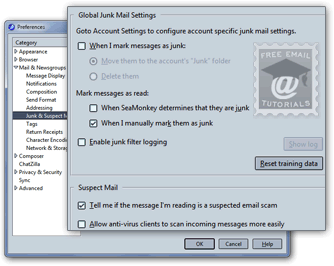
- The following options are useful if you like to use views (custom mail filters) to only show new, unread messages. Check "When SeaMonkey determines that they are junk" and/or "When I manually mark them as junk" (checked by default). Using the same reasoning as above, we recommend that you don't let SeaMonkey completely control the emails you will see as unread - keep the defaults (pictured above).
- "Enable junk filter logging" is unchecked by default: unless you do research on SeaMonkey's adaptive filters, you will probably not need to keep a record of what messages were perceived as spam. Side info: the "Show log" button on the right is disabled when the logging setting is turned off - if enabled, clicking that button will open those records (and allow you to manually clear them).
- You should avoid clicking the "Reset training data" button: doing so would erase everything SeaMonkey Mail learned from seeing you mark emails as junk mail or "not spam", respectively. This action can be useful if you remove all your email accounts and add new ones in that same SeaMonkey installation (i.e., not using the program under another Windows / Mac / Linux username or profile).
Handling Suspect Mail
Under "Suspect Mail", SeaMonkey lets you customize how it should behave with phishing attempts and third-party antivirus software: checked by default (keep it checked!), the "Tell me if the message I'm reading is a suspected email scam" checkbox lets SeaMonkey display a clear warning notice above the headers of the selected message if there is any doubt on its authenticity (typically, fake emails from banks, PayPal, and other such scams).
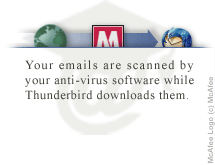 This graphic, from our Thunderbird Tutorial (another email program, also made by Mozilla), illustrates the next option: by default, SeaMonkey uses the most efficient and stable route, and downloads messages to your computer first (stores them on your hard drive before letting them run through your AV software's filters). The safer option is "Allow anti-virus clients to scan incoming messages more easily". Depending on your antivirus software, this setting may be superfluous: contact the manufacturer for their recommended setting for SeaMonkey.
When you are done, click "OK" to save your global junk mail settings.
Customize your email account's junk mail options
SeaMonkey Mail includes four options that can be configured on an account-by-account basis: from the main window, click on the Edit menu, and choose "Mail & Newsgroup Account Settings". Select "Junk Settings" on the left of the dialog that opens.
Tip: make sure that the correct email account is selected, and remember to configure these settings for each email account you have setup in SeaMonkey Mail - and they don't have to match!
The "Enable adaptive junk mail controls for this account" checkbox (first in screenshot below) is checked by default: unchecking it means that SeaMonkey Mail will not incorporate new data in its spam filter from your marking emails as spam or not spam.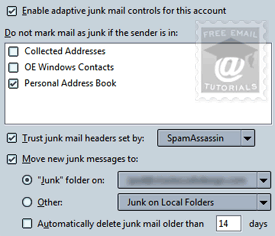 You can instruct SeaMonkey never to mark a message as junk if one of these conditions is met: "collected addresses" (these are senders to whom you have sent an email at least once); "OE Windows Contacts" (if the sender is a contact in Outlook Express (Windows XP users) or Windows Contacts (Windows 7 and Vista) - this option will read differently on Linux or Mac OS X); "Personal Address Book" (do not block people you have added to one of SeaMonkey Mail's address books).
Before it filters a message as spam, SeaMonkey can check its headers* against a list of online spam tables: check the "Trust junk mail headers set by" checkbox, and pick a provider from the dropdown ("SpamAssassin" is the most widely known and used).
* Note: email headers are "invisible" information that travels with every email sent and received online - you can see these headers in SeaMonkey by going to View > Headers > All.
Handling detected spam
The final two options determine how SeaMonkey should handle spam it detected: check the "Move new junk messages to" checkbox and pick a destination folder to automatically remove them from your inbox (but remember to regularly check the content of the spam folder you pick, in case SeaMonkey accidentally filters out legitimate messages!)
If you enable "Automatically delete junk mail older than [14] days", perceived spam messages will be deleted, whether you've had a chance to look at them or not: for this reason, we recommend that you leave this option disabled (it is by default).
Change your settings for other email accounts, or click "OK" to save your changes.