Change theme (appearance skin) in SeaMonkey Mail
Like its siblings from the Mozilla Foundation, the Firefox web browser and the Thunderbird email client, SeaMonkey has the ability to completely change its look-and-feel through "themes" (often called "skins", in other programs). Each theme is a free, downloadable file that is applied as we'll explain in this tutorial; 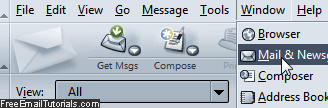 that package will change the appearance of all applications in the Suite: SeaMonkey Mail, the web browser and address book, the composer web editor, and the IRC chat client. By default, SeaMonkey comes with the "SeaMonkey Default Theme" and the gorgeous "SeaMonkey Modern", which is used for all screenshots in this series of tutorials (including the one in this paragraph!) On this page, you'll learn how to find, download, install, and change theme in any application of the SeaMonkey Suite.
Side info: the "Modern Theme", also available for Firefox and Thunderbird, was originally developed by Mozilla for Netscape Corp. and released as default theme for the Netscape 6 web browser in late 2001. Since then, it has been independently maintained as downloadable theme for Mozilla products. At this time (June 2012), no-one has unfortunately updated it for the latest versions of Firefox and Thunderbird, so SeaMonkey is -currently- the only up-to-date product that offers the modern theme.
Change theme
As mentioned earlier, two themes come bundled with SeaMonkey: we'll show you how to switch to a different theme, which works the same way regardless of the number of themes you've downloaded and installed (the next section covers getting and installing new ones).
From SeaMonkey Mail, or any other application in the Suite, click on the Tools menu and choose "Add-ons Manager" (or press the corresponding Ctrl+Shift+A keyboard shortcut). A new browser tab will open: select "Appearance" on the left. All themes currently installed will be listed; notice that incompatible themes ("Gray Modern", in our case) look different.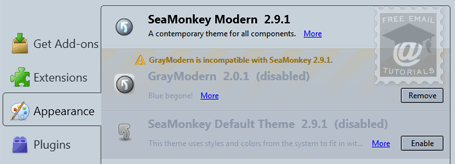
Click on the "Enable" button next to the theme you want to change to; then, click on the "Restart now" link that appears, for the change to takes effect (or click "Undo" to keep using your current theme). All SeaMonkey applications will close, and restart with their new appearance! Repeat that process until you find a theme you like.
Tip: most themes include some information, including developer web page or add-ons page on the Mozilla website. Click on the "More" link for the theme in which you're interested: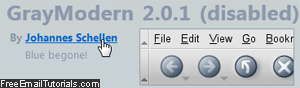
Deleting old themes
Note: you can delete an installed theme by clicking the "Remove" button next to it. However, we like to keep our favorite themes intact for two reasons: first, to remember to check if the developer has released similar themes (see tip above), and second, you can try to find updated versions from within SeaMonkey - click on the gear icon (top right corner of the add-ons page), and choose "Check for updates".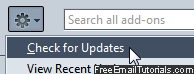
Under that same menu, make sure that the "Update Add-ons Automatically" option is enabled (checkmark next to it).
Get news themes for SeaMonkey!
Go to the SeaMonkey add-ons page for themes: addons.mozilla.org - from there, browse based on category, popularity, top rated themes, newest ones, etc. Remember to do this from within the SeaMonkey web browser, to get the right themes showing for your operating system and SeaMonkey version - see the tip below.
Caveat: in most cases, themes will work on the supported platforms of Windows, Mac OS X, and Linux. On Mac, the menus (not part of the interface) will not be themed.
When you found a theme you like, click on its name or preview thumbnail to get more information, or click on the "Add to SeaMonkey" button to install it right away. A quick download will start: when the Install button becomes available, click on it. The latest theme you downloaded will become the current theme next time you restart SeaMonkey; to use another theme than the one last installed, go to Tools > Add-ons Manager, select "Appearance", and pick the one you want instead (by clicking "Enable").
Tip: on Windows and Linux, go to Help > About to get your version; on Mac OS X, choose About under the SeaMonkey menu. Here's the advantage of using SeaMonkey to browse themes: you know right away when it won't be compatible!