Import Email Accounts Settings in Outlook 2003
Outlook 2003 allows you to import email accounts settings from Outlook Express and Eudora. Without third-party migration tool or workarounds, Outlook only accepts imports from Outlook Express and Eudora Light/Pro.
This tutorial shows you how to import email accounts settings in Outlook 2003. To import actual emails and contacts, please see the Import Emails and Contacts tutorial.
Importing Email Accounts Settings into Outlook 2003
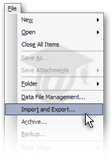
 To import email accounts settings in Microsoft Outlook 2003, go to File > Import and Export.
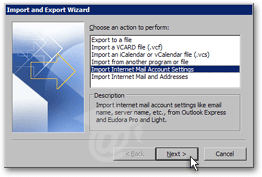
The Import and Export Wizard will popup. In the Choose an action to perform listing, select Import Internet Mail Account Settings and click Next.
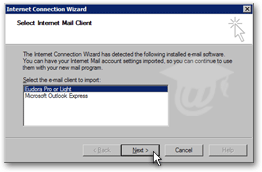 Outlook 2003 lets you next choose from which email client to import account settings, Outlook Express or Qualcomm Eudora (Pro or Light). Select the appropriate email client and click Next.
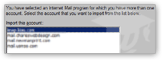 If Outlook 2003 detects multiple accounts in either client, it will ask you which account settings to import. Select an email account and click Next.
Reviewing the Imported Email Account Settings in Outlook 2003
Next, Outlook 2003 will review each setting for the imported email account: display name, incoming and outgoing mail server address, as well as user name and password.
With the exception of password (which will be blank for security reasons), all information fields will be pre-populated with the imported email account properties.
If Outlook 2003 successfully imported your email account's settings, the "Congratulations" screen will be displayed. Click the Finish button to complete the import operation.
To import settings from multiple email accounts, you will need to repeat the account settings import procedure for each email account.
Testing Your Imported Email Account in Outlook 2003
To test your imported email account(s), go to Tools > E-mail Accounts, click Next, select an email account and click the Change button.
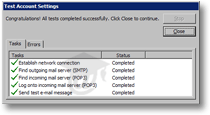 With the Test Account Settings, Outlook 2003 will attempt to send an email to itself using the settings of the selected email account.
Go to Tools > Send/Receive > Send/Receive All, (or press F9), to force Outlook to send emails from the Outbox, and download new emails from the server.
If you receive the test email, you know that all email account settings are correct.
Accessing Your Imported Email Accounts' Settings in Outlook 2003
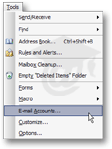 To check later on that your email account was imported, or tweak some of the email account's settings, go to Tools > E-mail Accounts, from Outlook's main window.
The options available for your email accounts in Outlook 2003 are covered in the following four tutorials: General Settings, Outgoing Server Settings, Connection Settings, and Advanced Settings.
The reasons for connection problems nearly always lie with the Outgoing Server or Advanced options, whose settings describe how Outlook 2003 should "talk" to the email server.