Outlook 2003's "Outlook Today" Feature
 Outlook Today is an internal web page embedded in Outlook 2003, which gives you a summary of your Calendar appointments, Tasks, and new emails.
Tip: see our Outlook 2007 tutorial to customize Outlook Today (which is identical in Outlook 2003, Outlook 2007, and Outlook 2010).
Outlook Today Overview
Although Outlook Today is not a feature introduced with Outlook 2003, most Outlook users do not take advantage of this functionality. If you use Outlook for more than email, Outlook Today is likely going to make organizing your life a lot easier - showing you pending and completed tasks, current date and actual (unread) message count, and much more!
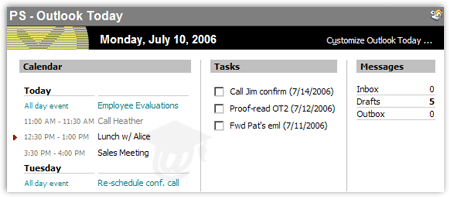
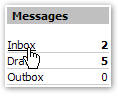 The screenshot above shows you Outlook Today with Outlook 2003's default settings: a summary is given for Calendar appointments, Tasks and Messages (Emails). All items in Outlook Today are clickable links. Clicking the email folder names will bring you to the corresponding folder, and clicking appointments or tasks will open the item.
Tip: you can access Outlook Today from Outlook 2003's Web toolbar, by typing the address "Outlook:Today" in the URL field.
Outlook Today Options
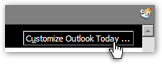 Outlook Today's overall appearance and visible items can be customized. To customize it, click on the Customize Outlook Today button in the top right corner of the page.
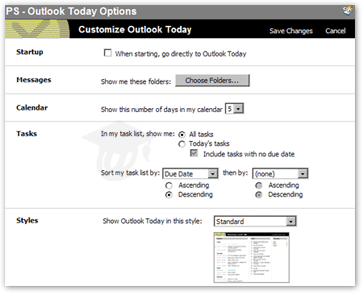
Outlook Today / Outlook 2003 Startup Folder
When checked, the When starting, go directly to Outlook Today checkbox instructs Outlook 2003 to show Outlook Today whenever it starts.
To change the folder to see when Outlook 2003 starts, go to Tools > Options, click on the Other tab, and click Advanced Options: 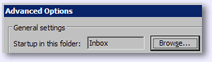 Then, click Browse and pick the Outlook startup folder of your choice.
Show or hide email folders in Outlook Today
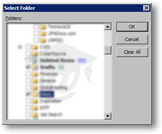 Visible email folders can be customized too. To add more folders than the standard Inbox, Drafts, and Outbox, click the Choose Folders button next to the Show me these folders label.
Each folder name is accompanied by a checkbox; simply tick the checkboxes corresponding to the email folders.
To unselect all email folders, use the Clear All button.
Outlook Today Calendar & Tasks
The number of days to span with calendar appointments, and visible tasks conditions can also be configured under the Calendar and Tasks sections.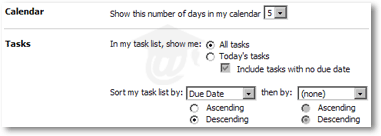
Custom Outlook Today Styles
One of five styles can also be applied with the Show Outlook Today in this style drop-down menu: Standard, Standard (2 columns), Standard (1 column), Summer, and Winter.
⇒ To apply the settings you configured for Outlook Today, click the Save Changes button to have Outlook 2003 apply all modifications. (To discard settings changes, click Cancel.)