Select multiple email messages in Yahoo Mail (several emails at the same time)
In earlier tutorials, we have seen how you can apply actions to the currently selected email: move the email, delete the email, a reply or forward the mail, etc. But, at a time saver, Yahoo Mail actually lets you select a multiple emails on the same time; when you have selected several email messages at once, you can then apply the same actions as if you had only one email selected, and yahoo will apply that particular action to each email in question.
How to select several emails at once in Yahoo Mail
Follow these steps to select multiple email messages:
- Once you are logged in to your Yahoo Mail account, go to the folder where these emails are (your inbox or another email folder)
- Then, scroll down to find the email's you wanted to select
- Whenever you come across one of the emails you want selected, click on its checkbox
- That email's checkbox will become selected, and the email itself will become of a darker background color, as shown on the screenshot below:
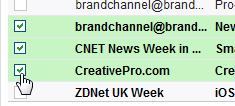
- If you select by mistake an email message, no need to start over: just uncheck that email's checkbox, and you are done! All other emails remain selected, and this one has now been excluded from the group selection.
- Keep going until you have selected all the emails you wanted
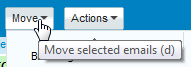
- Finally, when the email's selection process is complete, perform whatever action you wanted to perform on these emails: move them, delete them, etc.
- Yahoo Mail will perform the action on all emails that were selected
 There you have it! That's all it takes to select multiple emails at once inside your Yahoo Mail account; as a bonus, you also saw how you can apply on action on several emails at the same time. This technique works in any email folder inside your Yahoo Mail account: you can use it to select multiple spam messages in your junk mail folder for deletion, to move them back to your inbox, etc.
Next time you run out of time, and cannot read all the newsletters you received, you can just select all of them and either delete them, or file them in a separate email folder that you'll label "To read later", or something like that.