Print your Yahoo Mail contact list (address book contacts)
Unlike most email programs, Yahoo Mail comes with a built-in tool to print all contacts, or select ones from your contact list, in one of several printer-friendly formats. Yahoo even lets you print labels based on your contacts; this, in combination with contact categories, makes Yahoo Mail an ideal webmail service for small business owners who used web-based email as opposed to a full-fledged desktop email client like Microsoft Outlook. This tutorial will explain the four printing styles Yahoo Mail currently offers, and how to selectively print contacts.
Access the Yahoo Mail printing tool
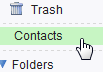 Start by clicking on the Contacts link shown on the left of any Yahoo Mail window, as shown on the screenshot.
 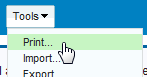 Yahoo will open a new Contacts tab inside the browser window. From there, click on the Tools menu, and choose "Print..." Yahoo will load the Printing Preferences screen, from where you can set and save the options involved with printing your contacts and Yahoo Mail address book. Let's have a closer look at the print options screen as you should now see it: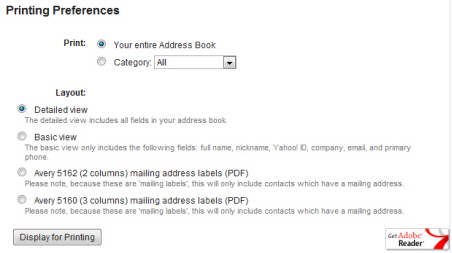
Print your entire address book, or only select contacts
The first printing option Yahoo Mail offers is which contacts to print: by default, the "Your entire Address Book" is selected, which will print all contacts you currently have in your Yahoo account. (As we'll see in the next section, some printing options will remove contacts from the print preview, based on information supplied in their profile.)
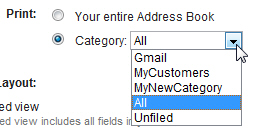 To make this tutorial more complete, we will ignore the self-explanatory Entire Address book option, and focus on the Category choice: select it, and click on the dropdown menu. As you see from the screenshot, and your own contacts, you can print contacts based on the category to which they belong. (Read our contact categories tutorial for more information; contacts can belong to multiple categories.) By default, you have at least a "Unfiled" category option in the dropdown, which includes all contacts until you assign contact categories to some or all of them, and an "All" entry, which encompasses all contacts (same as picking "Entire Address Book").
In the screenshot above, we have two custom categories, and another called "Gmail", resulting from our importing Gmail contacts into Yahoo Mail in an earlier tutorial.
For mailing lists and newsletters, you can create categories to organize your contacts, and these categories can also be used if you need to print shipping labels for some or all your Yahoo contacts. Let's look at the second set of printing preferences.
Print layout options for Yahoo Mail contacts
The second group of printing options cover the layout Yahoo will use for the print preview window. Yahoo Mail currently supports four print layouts: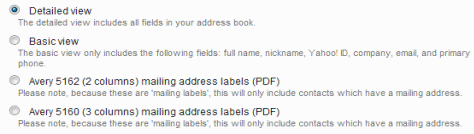
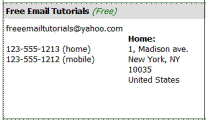 Detailed view, selected by default, will use all contacts from your Yahoo Mail address book, and display all the information you supplied in their profile. Click on the Display for Printing button, and Yahoo will open a new window with a two-column table, including either all contacts from your address book, or only those member of the category you optionally selected. The sample contact in the screenshot shows how all information provided is included in the print preview window.
You can now print the page by hitting Ctrl+P (Windows) or Command+P (Mac).
 The second printing layout, which Yahoo calls "Basic view" is the same as Detailed view in terms of layout, but only includes the following fields from each contact, even if you supplied values for other fields in the contacts' profiles: the contact's full name, nickname, Yahoo! ID (their full email address), the company, email, and primary phone number. Use the Print command in your browser, or the keyboard shortcut mentioned above, to print your contacts in this format.
Printing mailing labels from Yahoo Mail contacts
 The last two layouts Yahoo Mail supports are designed to print shipping labels for all or select contacts in your Yahoo account. To ensure pinpoint accuracy in the print output, Yahoo will generate a print-ready PDF file: printing from a web browser is somewhat unpredictable, since print settings vary from browser to browser, and for each user who has at some point customize their print settings. You can print your Yahoo Mail contact list either as Avery 5162 (2 columns), or Avery 5160 (3 columns).
Because these last two print options are mailing labels, any contacts which does not have a physical address associated with it, will not be included in the print-ready PDF. So, make sure that all desired contacts have some form of street address.
As soon as you click the Display for Printing button, Yahoo Mail will directly launch a PDF file, which you can Open or Save. (We recommend that you save the file first, since if you open first, the file is stored in your temporary internet files.)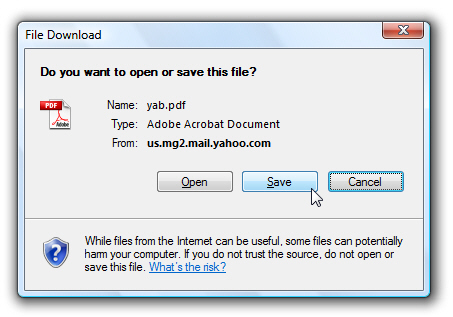
The PDF file Yahoo Mail generates will be called "yab.pdf", which stands for "Yahoo Address Book".