Mark an email as Unread or Read in Yahoo Mail
If you're like us, you use the read and unread status of an email to determine if you still need to read it or do something about it. This means that after you've read an email, you need to be able to mark it as read if it requires action later on. In this tutorial, we'll show you how to mark emails as read the war on land from your Yahoo Mail email account.
Mark an email as Unread in Yahoo Mail
Follow these steps to mark an email as unread:
- Once you have read a particular email, right click on it to mark it is as unread; you can easily distinguish read emails from unread messages: unread ones are displayed in bold. The screenshot below shows a read and an unread email by the same sender:

- Choose "Mark as Unread" from the context menu
- Yahoo mail will right away mark that email as unread
- The email's From, Subject, and Date fields will now appear in bold text, a convention Yahoo Mail and other webmail providers use to distinguish unread emails.
- If you click on that unread email once more, it will automatically be marked as read (and you can mark it again as unread of many times you want).
- If you have enabled keyboard shortcut support team Yahoo Mail, you can also use the Shift+K keystroke to mark the currently selected email as unread. This does the exact same thing as the right-clicking method we just talked about.
Marking email messages as Read in Yahoo Mail
Now that you know how to mark an email as unread in Yahoo Mail, let's talk about how emails are automatically marked as read. As soon as you select an email to read it, Yahoo will mark it as read. A later tutorial will explain how to change the number of seconds Yahoo Mail will wait before marking an email message as read, but for now, just remember that simply selecting it will change its status from Unread to Read.
To manually mark an email as Read without opening it, just right-click on it, and choose "Mark as Read" from the context menu. Another way is to use one of Yahoo Mail's keyboard shortcut, and use "k" as keystroke: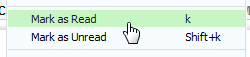
Tip: notice that each menu item displays letters and combinations of keys on the right side - this just indicates the keyboard shortcut corresponding to the particular command!