Empty a folder in Yahoo Mail (Spam, Trash, and other email folders)
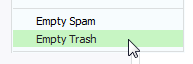 In some cases, you may want to empty a folder from its emails; Yahoo Mail offers the ability to empty the Trash (deleted emails) and empty the Spam folder with a couple of clicks, since these folders presumably contain undesirable emails (since in one case, you have manually deleted them, and in the other, we are dealing with junk mail). In this tutorial, we will show you two equivalent ways you can use to delete emails inside the Trash and inside the Spam folder. Then, you will learn how to quickly empty from its emails any regular folder.
Two ways to empty the Trash in Yahoo Mail
The easiest way to empty the Trash (which contains your deleted emails), is to use the dedicated Empty link (hard to notice unless you pay close attention) that is displayed next to the Trash itself, in the left pane where all email folders are displayed:
As you can tell from the tooltip shown in the screenshot, ("Permanently delete all emails in the Trash"), this action cannot be undone: for this reason, Yahoo Mail will give you a last chance to change your mind after you clicked on the Empty link: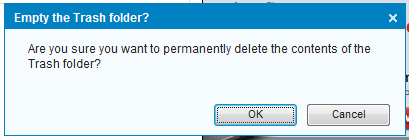
Yahoo Mail displays the "Empty the Trash folder?" confirmation message, with the OK button automatically preselected. To leave your Trash folder alone, without emptying it, click on the Cancel button to return to your emails. If you have decided to empty the Trash, hit Enter or Space (which has the effect of clicking on the selected button), or click OK to proceed.
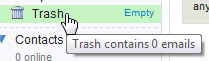 Yahoo Mail will empty the Trash, and you can confirm this by moving your cursor above the Trash, as shown on the screenshot, which displays the "Trash contains 0 emails" tooltip. Note that the Empty link is always displayed, whether the Trash contains any emails or none.
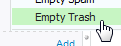 The second way to empty the Trash is to right-click on any folder (standard Yahoo Mail folders or custom folders you created), and choose "Empty Trash" from the menu. Note that the end effect is exactly the same as using the Empty link, as explained earlier.
Two ways you can empty the spam folder in Yahoo Mail
Yahoo Mail's Spam folder works just like the Trash when it comes to emptying it. So, the first way to delete all junk mail is to click on the Empty link displayed next to the Spam folder:
If you right-click on any email folder, custom or standard, you will also see an option to empty the Spam folder, just as we saw with the Trash. Simply right-click and choose Empty Spam, and Yahoo Mail displays the "Empty the Spam folder?" confirmation message: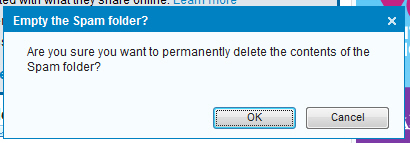
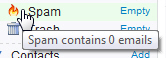 Click OK to confirm that you want to empty your Spam folder, and Yahoo will delete all your junk mail; if you want to confirm that the Spam folder no longer contains emails, simply hover above the folder with your cursor, and you should see the "Spam contains 0 emails" tooltip confirmation appear on screen.
Manually empty a folder in Yahoo Mail (regular email folders)
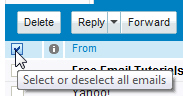 Emptying a regular Yahoo Mail folder from its emails, however, is not as easy as emptying the Trash or Spam folder. But you do not need to delete one email at a time to empty the folder of your choice (inbox or email folders you created yourself).
Use the checkbox shown on the screenshot: displayed above all your emails, this checkbox allows you to select all the visible emails inside the current folder. Once all emails are selected, click on the Delete button, and Yahoo Mail will place all selected emails inside the Trash folder. Note that, since the Select or deselect all emails checkbox only affects visible emails, you will have to repeat the operation if you have more than one "screen" of emails for the given Yahoo Mail folder - but this still beats deleting emails one by one!