Create a Yahoo email account (new Yahoo Mail email address)
 The first step is to signup to create a new Yahoo account: once you have an account, your Yahoo user name automatically becomes your email address user name (the part of the email address that comes before "
@yahoo.com"). If you already have an account with Yahoo, you have two choices: either sign up for a new account (as explained in this tutorial) to get a new email address of your choice, or use your existing Yahoo user name to sign in to Yahoo Mail.
Tip: for a much more detailed tutorial, especially for beginners, please see our separate "Create Yahoo Email Account" website.
Pick a new Yahoo email address
Tips on picking a good email address: Your email address is used all the time, and for convenience's sake, you will likely keep that email address for years to come: this is why you should give some careful consideration when choosing a user name for your new Yahoo email address. Something that may seem "cute" or funny today, may play against you in the future, for example when you use your Yahoo Mail account to apply for a job.
Should you include your name in your new email address?
There are some benefits in not including your last name in your email address, since you may not necessarily want to divulge your last name to all your email recipients.
Go sign up for your new email address
Now that you have determined that you want to create a new email address, possibly as opposed to using your current Yahoo account, go to mail.yahoo.com - you can also when you want to login to your Yahoo account to check your emails. Once on that page, look for the "Don't have a Yahoo ID?" header below the login form, and click on the Sign Up link to load the form to create a new account. This simple form only gathers basic information needed to setup your account, like display name for your emails, gender, etc.
Enter your profile information
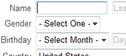 Yahoo collects first the information that will be used for various purposes, some of them purely marketing. Under Name, enter your first name and last name as you would like them to appear to your email recipients; in other words, while you can change your display name later on, this piece of information will until then be used when you send emails. Your Birthday, Country, and Postal Code are mostly used to properly target ads and free content Yahoo supplies throughout its various websites, like local weather information, for example.
Since your Yahoo Mail profile is the same profile you use for other Yahoo-owned website (like Yahoo Answers), make sure that they do accurately reflect who you are.
Choose a new Yahoo Mail email address
One of the downsides to using a webmail service as popular worldwide as Yahoo Mail is that many of the email addresses you will try to pick have already been taken. This is why, next to the "Yahoo ID and Email" field, you have a Check button: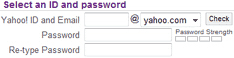
The "email address" is actually composed of your user name (the Yahoo ID) and the domain name (what the form calls "Email"). This is because Yahoo Mail offers three ".com" domains for your email address: yahoo.com, ymail.com, or rocketmail.com. (See below, our Yahoo Mail tip for new accounts, and an alternate way to get the Yahoo user name you want.)
If the Yahoo email address you want is not available, you will see the following message: "Sorry, no ID suggestions are available - To find an available ID, try adding a unique word to your ID or try an ID that is not based on your name". And Yahoo Mail will, in most cases, suggest alternate user names, typically the user name you picked with several digits at the end. If possible, we recommend that you avoid using digits in your Yahoo Mail account, since numbers are more difficult to remember for most people (and many of your friends or relatives will forget your email address!)
If the email address you want isn't available, try signing up for a new email account with a localized version of Yahoo, like Yahoo.co.uk for the UK, Yahoo.fr for France, etc. If the user name you covet is not available for "@yahoo.com", that same user name may still be available with "@yahoo.co.uk".
Protect your new Yahoo email address with a strong password
Choosing a password can also be a bit tricky: it needs to be strong enough to protect access to your Yahoo emails, but at the same time easy enough for you to remember. Yahoo will help you by preventing you from picking an easy-to-guess password: "Cannot include your name, ID, or the word 'password'", and confirm when you have a good password (uppercase and lowercase letters, symbols, and numbers make even a short password very strong).
Once you have picked a strong password, confirm it by re-typing it in the next field.
Enter valid Yahoo account password-recovery information
The alternate email address you supply is important, as it is the primary method Yahoo will use for password recovery; if you have forgotten your Yahoo password and have not supplied a valid alternate email address, you will still have a chance to recover your password by answering to the secret questions, but we recommend to enter a real alternate email address (in case you forget the answers to your secret questions).
The final step of your new Yahoo Mail account creation is to confirm that you're human, not an automated software creating fake Yahoo email accounts for spam purposes. Type the code shown in the box, and click "Create My Account".
Unless Yahoo brings you back to the new account signup form to correct some of the information you entered, you'll see the "Congratulations" screen confirming that your new Yahoo email address is created and ready to be used!
Click on Continue, and you'll be redirected to the Yahoo homepage; you can always tell if you are logged in to your Yahoo account by looking under the Search button: Yahoo will be showing the first name you entered when creating your email address!
Access your new Yahoo Mail email account
 To access your emails, since you are already logged in, just click on the Yahoo! Mail link in the sidebar on the left of the Yahoo homepage. Notice also that a number is displayed between parentheses: this number indicates the number of unread emails you currently have in your Yahoo inbox. In the case of a newly created Yahoo Mail account, this is simply a welcome email from Yahoo … You will now be looking at your new Yahoo email account's inbox!
Final step: make a new Yahoo Mail account known to others
As you will see in one of our next Yahoo Mail tutorials, it is very easy to add a contact to Yahoo Mail. This is probably what you'll want to do next, since having a new email address means that you want to make your new Yahoo email account known to your friends and relatives, so that they can update your contact information in their address book.