Create a folder in Yahoo Mail
 Yahoo Mail comes with five standard email folders, which cannot be renamed or deleted: Inbox, Drafts, Sent, Spam, and Trash. But you can also create your own folders, name them how you like, and rename them later on. In fact, you do need to create folders for your emails pretty quickly to avoid having your inbox impossible to manage, and overflowing with emails. In this tutorial, we will show you how to create an email folder in Yahoo Mail, and offer a few guidelines and tips when creating and naming folders.
Create a new folder in Yahoo Mail
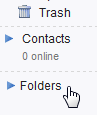 To create a folder in Yahoo Mail, locate the Folders entry in the sidebar on the left, below your standard folders and your contacts: you may need to collapse your contacts or scroll a bit to see the custom folders area.
By default, Yahoo Mail does not have any custom folders, so clicking on the triangle to show or hide your folder listing will not have any effect. This triangle will, however, become useful once you have created a lot of folders: by keeping your folder listing collapsed, you minimize the amount of scrolling you have to do in the left page.
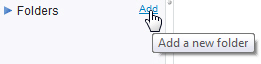 Next to the Folders header is a small link in blue that reads "Add", and displays a "Add a new folder" tooltip when you move your mouse cursor above it, as shown on the screenshot. Click on the link to create a folder, and Yahoo Mail will add a folder, and show a selected piece of text that reads "untitled", pre-selected for you: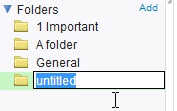
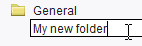 Type the name you want to give to the folder you just created, and hit Enter on your keyboard. As soon as you hit Enter, Yahoo Mail will create the new folder with the name you chose for it, and automatically display the folder no longer at the bottom of the list, but where it belongs alphabetically.
As you can see from the screenshot below, moving your mouse over the new folder shows a "[your-new-folder-name] contains 0 emails" tooltip. This makes sense, since a new folder will not have any content until you move emails to it. This message may seem a bit useless for a new folder, but the feature comes in handy when you actually start storing emails in folders: instead of manually counting the emails you have in your inbox or another custom folder, just move your mouse cursor above it!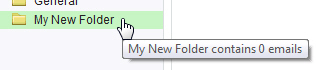
Create a folder with a right-click
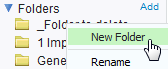 Yet another way in which Yahoo Mail lets you create new folders is simply by right-clicking on any of the email folders you already created, or any of the standard email folders, and choose New Folder from the context menu. This works in exactly the same way as the previous method, Yahoo gives you some flexibility.
Yahoo Mail Tip: change the sort order of the folders you create
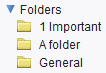
By default, as mentioned earlier, Yahoo Mail automatically sorts the folders you create alphabetically. A quick tip to retain some controls over how folders are sorted is to use "prefixes" in front of the folder name - since you may want all your personal folders grouped together, and your business-related folders grouped separately as well. Have a look at the folder listing below: these are all custom folders created in Yahoo Mail: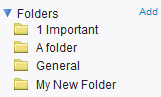
The "Important" folder is listed at the top, simply because we have placed a number "1" a space in front of the folder name; since numbers are sorted before letters, this folder will always appear above any folder you create and name with letters only.
Create new folder categories in Yahoo Mail
By using numbers or special characters (like hyphens or underscores), you can in effect group your email folders in categories! You just need to come up with your own convention, something like "1" means personal, "2" means taxes, "3" means professional / business, etc. This will make your life a lot easier as time passes and you will have unavoidably created a lot of new folders, which become hard to keep track of.