Add a signature to your emails in Yahoo Mail
 Especially if you use your Yahoo Mail account for business, you should always create an email signature that includes your contact information; instead of typing a signature by hand every time you send an email, Yahoo Mail can automatically add a signature to all emails you send. In this tutorial, we will show you how to create an email signature, and how to turn it off when you no longer need it, or even how to permanently delete your email signature. You will also learn about special formatting in signatures, like including links or an image.
Create an email signature in Yahoo Mail
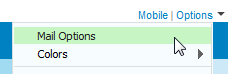 First, you need to login to Yahoo Mail; once you are inside your account, looking at your emails, look for the Options menu displayed near the top right corner of the window, as shown on the screenshot, and click on Mail Options. Yahoo will load your account settings, with General options automatically selected. Click on the Signature link displayed below, in the left pane: (a "Customize the signatures you append to messages you send" tooltip will appear above the link)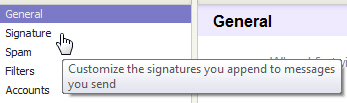
The Signature screen will load, with the Do not use a signature radio button selected (by default, Yahoo Mail does not append any signature to your emails). Click on "Show a signature on all outgoing messages" to turn on the signature option: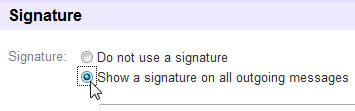
Choose a format for your email signature
Now that you have enabled email signatures in your Yahoo Mail account, you will need to choose a format for the signature:  you can either use plain text (characters only, without any kind of formatting, lines, links, images, etc.), or "Rich Text" signature, which allows you to add colors, change the font, etc. - Since plain text signatures are self-explanatory once you have created a rich text email signature, we will show you directly how to add a signature with formatting options enabled. Click on the "Rich Text" link displayed near the top right corner of the signature editor to turn on the feature.
As soon as you enable formatted signatures, Yahoo Mail displays a toolbar in the signature editor. The email signature formatting options will seem familiar to anyone who has used a modern word processing application like Microsoft Word (Word 2007 or earlier versions).
From left to right, the Yahoo Mail email signature editor allows you to:
- Change the font of your email signature, using fonts that are commonly available to all your email recipients: although these fonts are Windows fonts, they are so popular that most or all of them are installed on Mac and Linux.
- Change the text size of your signature: you should make the font size close to the font size of your emails themselves, possibly a bit larger, probably not smaller.
- Make your signature or potions of it Bold, Italic, or Underlined. We don't recommend using underlined text in your emails unless it is a link.
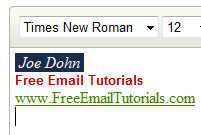
- Change the text color or text background color of your signature; note that the text background color command only changes the color behind text, not the background color of your email, or the signature portion of your email. (See an example below, in the first line of our sample signature screenshot.)
- Smiley's (or "emoticons"), while displayed in the email signature toolbar, is not yet supported by Yahoo Mail.
- Links: you can highlight any portion of text inside your signature and make it a link. Note that if you type a piece of text that starts either with "
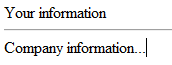
http://" or "www.", Yahoo Mail will automatically convert the text for you once you hit Space or Enter. - Horizontal line separators - this will add a line between portions of related information: this is often used to separate your personal contact information (name, title, direct phone line, and email address), from the rest of the signature that includes generic professional information, like company name, address, and website.
- Alignment, bullets, and indent/un-indent commands are also available, but not too likely to be useful in a -typically- short and simple email signature.
- (Stationary for your emails is visible in the toolbar, but not yet implemented.)
(We don't necessarily recommend the color choices in the screenshot above, but it illustrates various formatting options at your disposal for email signatures in Yahoo Mail.)
Insert an image in your signature
Unfortunately, Yahoo Mail does not yet support including an image in your signature: since this request is such a common one, the feature will likely be added in the very near future.
Save and activate your new Yahoo Mail signature
 Once you have finished tweaking your email signature, click on the Save Changes button: this will save your email signature, and turn on the feature for the next times you send an email.
Yahoo Mail will display a "Saved changes to Signature" confirmation message once the signature has been saved and is ready to use.
Test your new email signature
Click on the Back to Mail link shown at the top of the left pane, and create a new email to test your signature. Notice that you still can change the font settings of your email itself, independently from the signature, but that you can even use the email editor's formatting command to change the signature format (without affecting the signature settings, since this will only change the appearance of your signature for this particular email).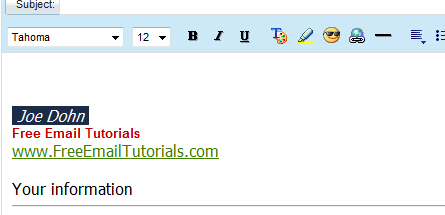
Turn off or disable your email signature in Yahoo Mail
To temporarily disable email signature, retrace the steps we outlined to create the signature in the first place: click on Options > Mail Options, then choose Signature. This time, select the Do not use a signature radio button, and click Save Changes.
This will turn off your email signature without deleting it: you can reactivate it at any time.
Permanently delete your signature
To completely remove the email signature from your Yahoo Mail account, simply delete the signature's text, and click on Save Changes. If you leave the "Show a signature on all outgoing messages" option checked, but have no text saved in the signature editor, you are essentially using a "blank signature". This amounts to the same thing as deleting your signature and disabling the feature by choosing "Do not use a signature" as well.