Change font size in Internet Explorer 8 / 7 / 6 (text size) for Windows 7 / Vista / XP
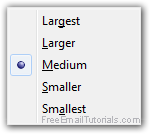 By default, the font size in Internet Explorer is set to "medium text size", but can be easily changed in just a few clicks, as you'll learn in this tutorial. In most cases, web designers will do a good job at selecting a font family and text size that matches the needs of users and the requirements based on display size and screen resolution. If this is not the case, Internet Explorer offers you a couple of solutions: starting with Internet Explorer 8, you can not only decrease or decrease the font size of some or all of the text on a web page, but you can also zoom in or zoom out the entire web page - although this approach will help when the entire page looks too small on screen, changing the text size itself is the preferred solution when what you are trying to read is too small - or looks too tiny, based on your current screen settings.
Make the text larger or smaller in Internet Explorer
Follow these simple steps to increase or decrease text size on a website:
- First, start by opening the web page in question, where the text appears too large (or, most probably, too small). Once you are on that website, you have two ways in which to increase or decrease font size.
- The easiest to remember how to increase or decrease font size is to click on the "Page" menu, and choose the "Text Size" submenu. (If you don't see a Page menu, click on the "View" menu instead, or press Alt+V on your keyboard.)
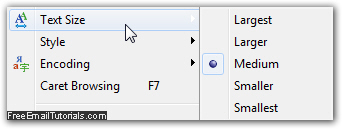
- You will see three choices for text size: Largest, Larger, Medium (the default font size), Smaller, and Smallest. Just pick the one you think you'll need, and see if it makes the web page text more legible. If not, just try another font size instead.
- Note that Internet Explorer may "remember" your settings, which would translate as a regular website showing its content text much too large or much too small; if so, follow the same steps and this time choose "Medium" as default font under the "Text Size" submenu. And to make the font bigger for that other site... (etc.)
Changing text size doesn't work! If this is the case, and you cannot make the text look larger (or smaller), this is probably due to the way the web page was "written" behind the scenes. If this is so, you will have no choice but to resort to the zoom tool instead: change IE zoom level.