Show or hide the preview pane (Reading Pane) in Windows Mail
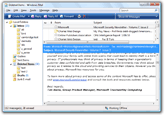 You can read your emails in several different ways in Windows Mail: the easiest way is to use the preview pane (typically called "reading pane" in other email programs). The preview pane, as we'll call it to use Windows Mail's terminology, allows you to see the content of the selected email message without actually having to open it. Like in most other email clients, you can move the reading pane to the bottom of the screen, or align it to the right; either way, this portion of the screen will be divided between your emails, and the content of your emails (email body). The alternative is to hide the preview pane altogether - in that case, the only way to read an email is to double-click on it to open it in a new email window. While this seems a bit impractical, we've seen quite a few people who prefer to work with the reading pane turned off (hidden). The screenshot on the left shows Windows Mail with the preview pane and email headers visible (highlighted in blue).
Show or hide the preview pane in Windows Mail
Let's start this tutorial by showing you how to turn on or off the preview pane:
- Click on the View menu and choose "Layout": the Window Layout Properties dialog will open, and lets you show or hide quite a few interface elements in a couple of clicks. Look at the bottom of the dialog, under the "Preview Pane" section:
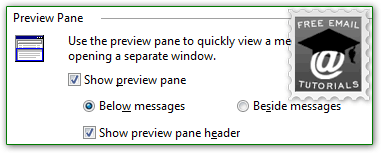
- Check or uncheck the "Show preview pane" checkbox to show or hide it.
- Note: the next two options are disabled (grayed out) if you have hidden the preview pane (unchecked). Check it to customize these.
- "Below messages" shows a horizontal Reading Pane: your emails are listed at the top, and the content of the currently selected message at the bottom. Especially with the flexibility of resizing the pane as needed, this setting is ideal for any screen resolution and monitor size, but especially well suited for netbooks, for example - very compact layout. (We'll show you how to resize folders and preview pane at the end of this tutorial.)
- "Besides messages" displays a vertical preview pane: this option is ideal for wide screens, since it takes advantage of every horizontal pixels. This setting shows all emails on the left, and the content of the selected one on the right. (Email messages' content is typically customized, easier to read anyway, in a fixed, smaller width - a horizontal preview pane doesn't capitalize on that for a higher screen resolutions.)
- Tip: select one of these settings and click the Apply button (or press the equivalent Alt+A keyboard shortcut), to preview the change without closing the Window Layout Properties dialog.
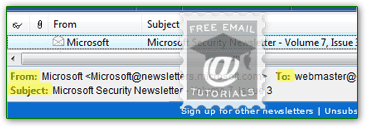
- Finally, the "Show preview pane header" checkbox (checked by default), shows the sender, recipient(s), and subject line of the message currently selected in the folder pane; in a sense, this information is redundant (because these columns are visible by default in the folder listing), but we found it easier to have these headers displayed right above the email body: besides, in some cases, the current message is out of view. Here's Windows Mail showing the selected message (top), the basic email headers (middle), and the content (body) of the message at the bottom: this is with "Show preview pane header" checked, and we highlighted these three fields in the screenshot.
- Once you have found your favorite preview pane configuration, click on the OK button to save these settings and return to Windows Mail.
Resize the preview pane and folder listing
You can also resize the Reading Pane by dragging its borders around (and can do the same thing for the folder pane, which gives you more width for the preview pane and the folder listing). If you are using a vertical preview pane (docked on the right), you can only resize it in width: move your mouse pointer above the left border, and start dragging left (wider) or right (narrower) as soon as your cursor becomes a double-headed arrow: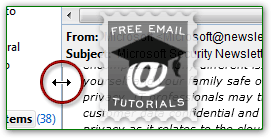
When you are using a horizontal preview pane (docked to the bottom of the Windows Mail window), you can also resize the reading pane up or down, which shows more of the message's content (drag up), or more emails in the folder listing (drag down).
Side info: Windows Mail will "remember" exactly how you resized your preview pane between sessions: this setting is automatically saved (just like the window size and position when the program is not maximized when you close it).