Mark email messages as Read / Unread in Windows Mail
Unless they've already been read in a web-based mail client, or downloaded in another email program, all new messages will be marked as Unread in Windows Mail; they stay Unread until you open them or keep them selected for a few seconds; you can also manually mark messages as Read or Unread, and even customize how long Windows Mail will wait before automatically marking them as Read after they've been opened. Unread emails appear in bold text inside the folder listing, read messages in "regular" (non-bold) text: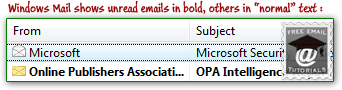 Manually mark emails as Un/Read | Mark entire folder as Read | Customize Mark-as-Read timeout
Manually mark emails Read or Unread
Start by opening Windows Mail - any folder will do, as long as it contains several emails:
- When the folder and its content loads, right-click on an email already marked as read. Tip: to select several messages, hold down the Ctrl key and click on one after the other. To select sequentially, click on the first one, hold down the Shift key, and click on the last one. To select all emails in the current folder, click on one of them, and press Ctrl+A.
- From the context menu, choose "Mark as Unread":
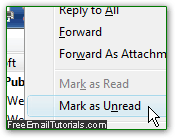
- Windows Mail will then display the message(s) as unread, and show it in bold text.
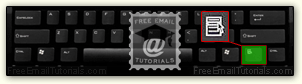
- The next time you select that email, it will, as normal and expected, be automatically marked as read after the period you currently have set in Windows Mail (we'll show you how to customize that). In other words, manually marking an email as unread will not give it a permanent state of "unread-ness"! Note: while Windows Mail doesn't support the Ctrl+U keyboard shortcut to mark messages as Unread, you can select an email, press the "Apps" to right-click on it, and then the letter "N": any messages selected while you pressed those keys will now be Unread! The Apps key that simulates a right-click is generally the third key on the right of the spacebar, and shows as icon a context menu:
- It may not seem that useful to mark a single email as read, since it automatically becomes that way within seconds, but keep in mind that "Mark as Read" can be applied on a batch of messages at the same time, and that Windows Mail can be configured not to automatically mark emails as read for a while (if ever - useful if you use the Unread status to mean "todo" or "important"). When one or more emails are selected, right-click on any of them and choose "Mark as Read" from the context menu.
- Side info: you can also change the Read / Unread status of the currently selected email(s) by going through the Edit menu, and choosing the Mark as Read / Mark as Unread menu item. (And notice that "Mark as Read" has its dedicated keyboard shortcut of Ctrl+Q, which would be applied on the set of selected messages.)
- If you have your emails organized by conversation thread (View > Current View > Group Messages by Conversation), you can mark an entire conversation as Read by pressing Ctrl+T, or going to Edit > Mark Conversation as Read.
Mark all messages in an email folder as Read or Unread
Windows Mail includes a special command which lets you mark an entire folder as Read:
- Open the email folder for which you want all messages to be marked as Read; then, click on the Edit menu and choose "Mark All Read":
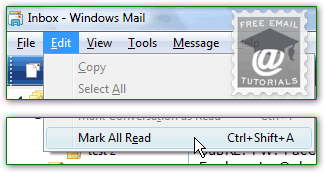
- Not a single message is now Unread in that folder!
- Tip: you can also use the "Ctrl+Shift+A" keyboard shortcut: press it while inside any folder, and all its emails will be marked as Read.
When new emails are downloaded in Windows Mail, they are all unread by default: when you open an email to read it, it is marked as read either immediately, or after a number of seconds that you can determine through Windows Mail options. How soon you want an email message to be marked as read depends on a number of things, including your own personal preference.
Change how quickly emails are automatically marked as Read
Follow these steps to change how long Windows Mail will wait before it marks messages as Read: the timeout starts when you have a single email selected, with its body shown in the reading pane (customize Windows Mail's preview pane settings), or when you open an message in its own window (double-click on it, or hit Enter while it is highlighted in the listing).
- Click on the Tools menu, and choose "Options"; when Windows Mail opens the Options dialog, click on the "Read" tab at the top:
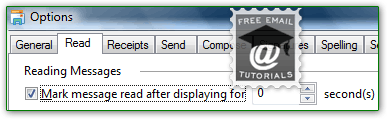
- Under Reading Messages the "Mark messages read after displaying for [x] seconds" checkbox is checked by default; uncheck it to prevent Windows Mail from automatically marking emails as Read (in this case, you manually mark messages as Read when you feel like it, they remain Unread indefinitely otherwise).
- Click on the up/down arrows or type a number inside the "second(s)" text box to change how long Windows Mail will wait before marking the selected message as Read.
- Click OK to save your settings. From now on, new emails will follow your new rule.
- Caveat: if you check an email account from multiple locations, either through a desktop email client like Windows Mail or a webmail provider, your messages could be marked as Read automatically when they are downloaded from the server, marked as Read when an authorized user opens them in webmail, etc.