Enable or disable the new email sound in Windows Mail
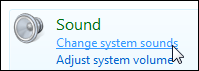 By default, Windows Vista comes with a predefined "new mail sound": any email application that is configured to take advantage of this feature will play that particular "
WAV" sound file when new email messages are detected, and downloaded from server. This includes all Microsoft email programs (Windows Live Mail, Microsoft Outlook and Windows Mail), and any third-party mail client that supports it. Regardless of your new mail sound setting, you can customize Windows Mail not to play the new mail sound, in which case it will remain silent even as new emails are downloaded on your computer. Vista plays by default the file called "Windows Notify.wav", but you can change that as well - since this is an "operating-system-wide setting", changing the Windows "New Mail Notification" sound will affect all email programs that rely on that setting. Note: if you the find new email sound too distracting (email checks happen every five minutes by default), don't disable it: just change how often Windows Mail checks for messages on the server!
Disable the new mail sound in Windows Mail
Playing an audio cue when new messages are downloaded is automatically enabled: to turn off that sound, follow these easy steps:
- Inside Windows Mail's main window, click on the Tools menu and choose "Options".
- Make sure that the General tab is selected in the dialog that opened (it should be by default). Under the second section ("Send / Receive Messages"), uncheck the "Play sound when a new messages arrive" checkbox:
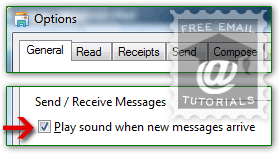
- When unchecked, Windows Mail will not play a new sound when messages are downloaded from the server, but you'll still see the new mail icon in the system tray (notification area of the taskbar). Click OK to apply.
- This setting takes effect immediately, is persistent (will automatically be remembered next time you open Windows Mail), and only affects your user account.
You can configure the new mail sound to play any WAV file: learn how to customize the new mail sound in Windows Vista. If you have an audio file (like an MP3), search online for a audio format converter: as long as you end up with a WAV, Windows will accept your custom file. For more tips on the operating system itself, check out our Vista Tutorial.
Enable the new mail sound
To turn the new email sound functionality back on, follow the same steps: check the "Play sound when of new messages arrive" checkbox, and click OK.
Change New Mail Sound
We linked to a more detailed tutorial above, but here's the short answer:
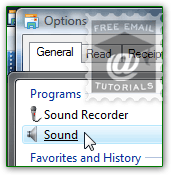
- Type "sound" in the start menu and click on the "Sound" option (audio speaker icon, which appears listed under "Programs"). The system sounds dialog will open.
- Select the "Sounds" tab, and scroll through the listing of sound events until you find "New Mail Notification" (the list is alphabetized).
- Click on that sound, and pick another
WAVfile from the "Sounds" dropdown at the bottom (or click "Browse" to choose a custom sound file from your computer). - Click "Test" at any point to preview the sound; click OK to save your new setting.