Add an email sender to your contacts in Windows Mail
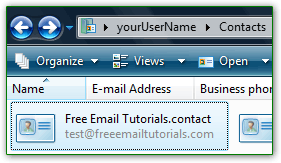 Unlike Outlook Express, Windows Mail doesn't come with its own address book: instead, it relies on a feature introduced in Windows Vista, called "Windows Contacts". This allows Windows Mail and other programs to store (and retrieve) people's information from a centralized location. For backup purposes, this is also easier, since you can simply copy your Contacts folder to USB drive. Windows Vista doesn't include anything in that folder, but new contacts created from other applications will be stored there, as well as any person whose profile you create from within that folder (also explained in this tutorial). We'll also show you how to delete contacts. Tip: to open your address book, click on the start button (Windows logo in the taskbar), and type "contacts" in the start menu: click "Windows Contacts" at the top. The path of that folder is:
 C:\Users\YourUserName\Contacts\
Create a new contact from an email message
This is how you add as contact someone who already sent to an email:
- Find an email sent by the person you want to add to your address book (to make it easier, you can sort messages by sender by clicking on the "From" column header).
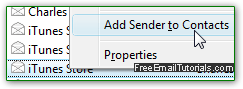
- Right-click on the message, and choose "Add Sender to Contacts" from the context menu: nothing will visibly happen, but Windows Mail has added that person to your Windows Contacts - a new file was created in your Windows Contacts folder, using all the information that could be gathered from that email: this typically includes the email address and the sender's name. This option will be disabled if multiple emails are selected at the same time (in other words, you can only add one contact at a time).
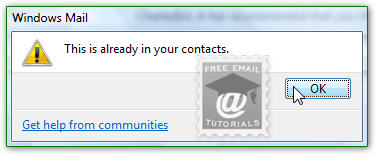
- If the contact already exists, you will get a "This is already in your contacts" error message. Click the OK to dismiss, nothing was added to your address book:
- To add multiple people as contacts at the same time, just double-click on the email message to open it in its own window; then, click on the "Tools" menu. Choose the "Add to Contacts" submenu, and click on "Everyone on To List" - in other words, Windows Mail will create new contacts for each of the recipients besides yourself!
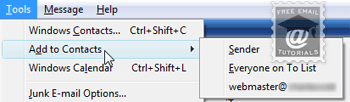
- Note: you can directly access your address book from Windows Mail by choosing "Windows Contacts" under the Tools menu, or by pressing the equivalent "Ctrl+Shift+C" keyboard shortcut.
- To edit a contact, double-click on him/her in the Windows Contacts folder - add or change any information you want, and click OK to save the updated profile.
- To delete a contact from your Windows address book ("Windows Contacts"), all you need to do is locate it, right click on it, and choose "Delete" from the menu. To delete several contacts at the same time, hold down the control key ("Ctrl") and click on one contact after another - then, press the Delete key on your keyboard.
Manually create contacts
You can at any point manually add contacts, even when Windows Mail is closed - just type "contact" in the start menu and click "Windows Contacts". When the special folder opens in Windows Explorer, click on the "New Contact" button: fill-in as much information as you want to (you need at least one first name or Vista won't let you save), and click OK when done.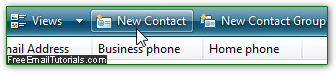
Side info: Windows Vista stores your contacts' information inside files that use the ".contacts" extension. Behind the scenes, these are actually "XML" files, and you can open them with a text editor.
Contact Groups ("Distribution Lists")
If you often email the same group of people, it makes sense to make a contact group: this doesn't affect the contacts themselves in any way; think of it as a folder with shortcuts. Opening the folder gives you access to plenty of programs; in our case, addressing an message to a distribution list will email several people, but you don't need to enter their email address individually! Click on the "New Contact Group" button to create a distribution list: type a memorable "Group Name", and click on "Add to Contact Group" as many times as you have contacts (you can also Ctrl-select multiple contacts at the same time, as explained above).