Start Outlook minimized (Outlook 2007, Outlook 2003, Outlook 2010, etc.)
 Since as far as we can remember, Windows has provided the ability to start a program minimized, in this case Microsoft Outlook. While in this tutorial we will show you how to start Outlook 2007 minimized, this trick works not only with Outlook 2010, Outlook 2003, 2002, 2000, and 97 - it actually works with any program you launch from a shortcut in any recent version of Windows!
Make Outlook start minimized
Locate the shortcut you use to launch Outlook 2007: on your desktop, in the Quick Launch area of the taskbar, or on the Start Menu, etc. Right-click on it and choose "Properties". Windows will open the properties of the shortcut, and anything we customize from this point only affects the shortcut to the program, not the Microsoft Office Outlook 2007 program itself.
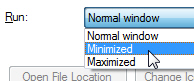 Click on the Shortcut tab of the Properties window; click on the "Run" dropdown near the bottom, and choose "Minimized": this option controls how the containing window will appear when you launch the program. The default setting of "Normal window" lets Windows decide how to start the program, usually by re-using the window position and maximized state when you last exited Outlook. The "Maximized" setting tells Windows that it should force Outlook to start as a maximized window.
 And finally, choosing "Minimized" will force Outlook to start minimized to the taskbar, as shown on the screenshot. This is of course an option you can re-configure at a latter time, if you decide that you no longer like Outlook 2007 to start as a minimized window.
To confirm your choice, click OK: from now on, Outlook should always start minimized!
Test if Outlook 2007 starts minimized
If needed, exit from Outlook, and wait for about 30 seconds (Outlook will not restart if it is still busing exiting in the background). Now, restart Outlook: you should see the minimized Outlook button in the taskbar, and this confirms that your settings were applied correctly. Depending on your other settings, Outlook 2007 may either show as a minimized taskbar button, or not show at all, except as an icon in the notification area (system tray), next to the clock.
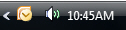 This tutorial only covered the startup mode of Outlook; a later tutorial will explain how to make Outlook 2007 show or hide itself when it is minimized (and even how you can hide the Outlook icon from the notification area / system tray, next to the clock).