Request a read receipt in Outlook 2007
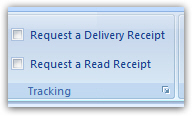 Whenever you send an email from Outlook 2007, you can optionally request a read receipt from the other party; in this tutorial, will explain how to request a read receipt on some emails, how to request read receipts for all emails, and how Outlook 2007 should process read receipts requested by people who email you. We will also go over the limitations of read receipts, and why you should rely on them only "with a grain of salt". This tutorial will also show you how to configure relevant read receipt and tracking options in Outlook 2007.
Read Receipts vs. Delivery Receipts: You can request delivery receipts from Outlook 2007, but this feature only works within an "Microsoft Exchange" environment; in other words, if your mail server is anything but an Exchange server, delivery receipts will not have any effect.
Request a read receipt when sending an email from Outlook 2007
Outlook 2007 lets you request read receipts on an individual email basis: to request a read receipt on an email you are composing, click on the Options tab of the ribbon, and locate the Tracking section of commands. Check the Request a Read Receipt checkbox, as shown on the screenshot: (see our note on Delivery Receipts earlier in this tutorial)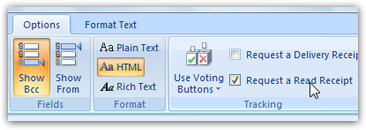 Once you send this email with Outlook 2007, the email recipients' email program will see the requested read receipt in the email headers, and will process it accordingly (see the last section of this tutorial for limitations of read receipts). See below how you can have Outlook 2007 automatically request read receipts for all emails you send.
Configure read receipt options
We will now show you how to customize your read receipt options in Outlook 2007. Go to the Tools menu, and choose Options: the Preferences tab is selected by default; click on the E-mail Options button, and then click on Tracking Options in the new dialog that opened. You should now be looking at the Tracking Options dialog: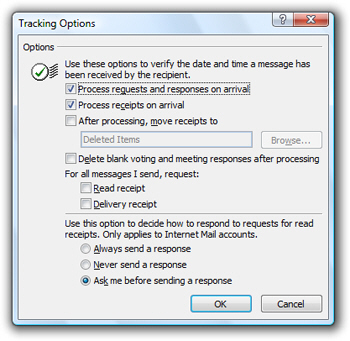
Automatically request read receipts for all emails
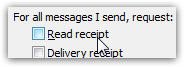 If you want to send a read receipt request with every email you send, you do not need to manually request the read receipt as described above: you can configure Outlook 2007 to automatically request read receipts for all emails. To make Outlook 2007 always request a read receipt for emails you send, check the Read receipt checkbox visible below "For all messages I send, request". Click OK on the various dialogs until you get back to Outlook's main window to apply the settings.
 From now on, all emails sent from Outlook 2007 will automatically include a read receipt request, but you can manually cancel the read receipt for an individual email by clicking on the Options tab, and un-checking the "Request a Read Receipt" checkbox (which only affects the current email).
Configure Outlook 2007 to handle read receipts from others
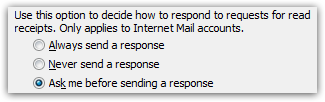 Outlook 2007 also lets you customize its handling of incoming read receipt requests: it asks you by default whether or not you want to send a confirmation back to the email sender who requested a read receipt (the "Ask me before sending a response" radio button). But you can also configure Outlook 2007 to "Always send a response" or "Never send a response". If you chose to never acknowledge read receipts, Outlook won't let anyone know if their email was read or not. This option is ideal since it lets you control when and if to respond to some emails, without bothering you with a manual request every time.
Let Outlook 2007 automatically file your read receipts
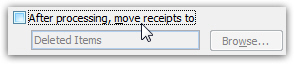 Outlook 2007 includes an option to automatically file read receipts you receive from recipients into a folder: this is like a specialized email rule to make your email management more efficient.
 To enable this automatic handling, tick the "After processing, move receipts to" checkbox; then, click on the Browse button to pick the folder in which these receipts should be filed.
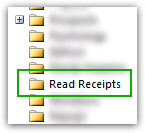
The ideal solution is probably to create an email folder dedicated to read receipts, to which you can go to double-check on a particular email's Read status. Since this process works behind the scenes, you will never be distracted by incoming read receipts cluttering your inbox, but still have them available if needed.
How much can you rely on read receipts?
A read receipt is a piece of information sent along with your email, which indicates to the recipient's email program that a such a read receipt was requested. Ultimately, a read receipt is not processed by your Outlook 2007 or by your mail server: it is processed by the email recipient's email program (or webmail client, if they check their emails from a web interface).
Put differently: the only case in which a read receipt confirmation is reliable is when you receive it. This does not mean that your email was read, but at least that it was delivered and opened. Conversely, not receiving a read receipt confirmation for an email you sent does not necessarily mean that it was not read - it could simply be that the email recipient's email program is configured to ignore read receipt requests, or that the email recipient clicked not to acknowledge the read receipt you requested from Outlook 2007.