Print email messages from Outlook 2007
Pretty much anything you can see inside Outlook can be printed: in this tutorial, we will show you how to print an email in Outlook 2007. You will also learn about the difference between the Print and Quick Print commands, and how to take advantage of each; the Print Preview feature; and the ability Outlook gives you to Define Print Styles.
Print preview: check an email before printing it
Before running into problems printing an email, use the Print Preview feature Outlook 2007 includes: this will give you a near-perfect idea of how your email will look once it is actually printed on paper. To print-preview an email, first make sure that the proper email is selected in the email folder listing, and then go to File > Print Preview.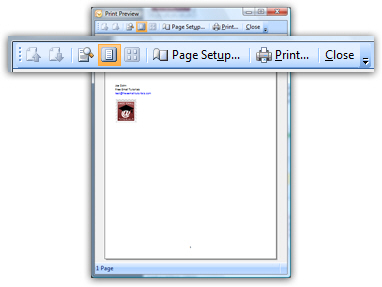
The Outlook 2007 Print Preview window opens, with the current email displayed on a virtual sheet of paper: this is how your email will look, once printed. Notice the toolbar at the top of the Print Preview window: it allows you to navigate through the "pages" of your email, to zoom in, view one page or display multiple pages at once.
Customize email printing options
The Page Setup button opens the options dialog for the current printout: Outlook 2007 lets you customize the font you will use for the printed email (Format tab), the paper size and settings (Paper tab), and the header and footer information you want displayed on the printed email (the "Header/Footer" tab).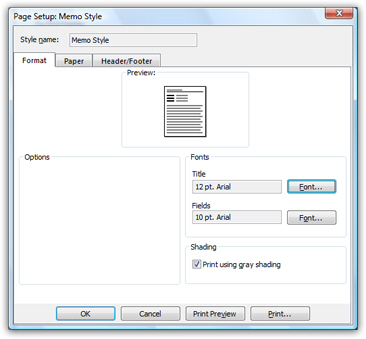
To accept your changes, click OK to return to the Print Preview window; or, hit the Print button to get the dialog shown below (the standard Windows Print dialog).
Print your email from the Print Preview window
The Print button does not call Outlook 2007's "Quick Print" command that sends the email's content straight to your default Windows printer; this will close Outlook's Print Preview window, and bring up the Print dialog, which allows you to configure your printing preferences for this particular email: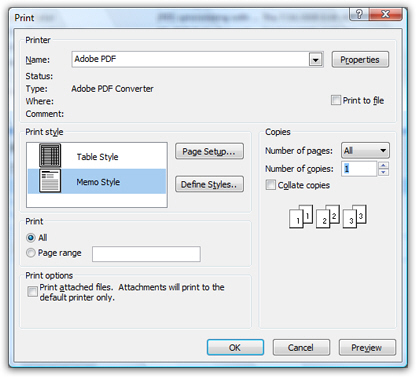
If you want to print this email to the default Windows printer (automatically selected in the dropdown menu at the top), you can hit Enter: this saves you time, and does exactly the same as clicking on the OK button.
Exit Print Preview without printing
 To hide the Print Preview window at any time, and return to Outlook's main window, either hit the escape key on your keyboard (Esc), or click on the Close button on the right of the toolbar.
Printing functionality and print preview only work if a printer is available or if a print driver (like PDF) is installed. The printer can either be directly plugged in, or made available to Windows as a network printer.
Printing emails in Outlook 2007
You can of course completely bypass the Print Preview step once you have familiarized yourself with the various printing styles Outlook 2007 offers, and how different types of emails will look on paper. There are four ways to print an email in Outlook 2007:
- Print from the menu — Select the email you want to print, and go to File > Print; that's it! The Print dialog we discussed above will open, and let you customize print styles, pick the printer to use, etc.
 Use the Quick Print command on the standard toolbar — By default, Outlook 2007 displays a "Standard Toolbar", which houses the most common commands you are likely to use. One of them has a printer icon, and is mapped to the "Quick Print" command. Unlike the regular Print command, Quick Print will bypass the Print dialog, and send the selected email directly to the default printer, using your default settings. (Though not visible on the screenshot, Outlook 2007 will display as tooltip the name of the default printer, which will be used.)
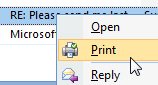 Right-click on the email you want to print — Right-click on an email, and notice that the second command reads "Print" - but also notice that Outlook displays a tiny green checkmark above the printer icon: this is a hint that this is actually the Quick Print command: the checkmark indicates that the command will use your default printer. This method will bypass the Print dialog altogether.
- Print emails with a keyboard shortcut! — The universal Windows keyboard shortcut of Ctrl+P to print the current document also works in Outlook 2007: this will open the Print dialog, and let you customize printing preferences. To accept the default printer and printing preferences, hit Enter as soon as the dialog appears.
And these are the four methods you can use to print an individual email in Outlook 2007; the next section explains how to print several emails at once.
Print multiple emails at the same time!
Hold down the control key on your keyboard (Ctrl) and click on emails you want printed, one after the other, while maintaining the Ctrl key pressed down. Once all the emails you want printed are selected, use one of the print methods we described earlier.
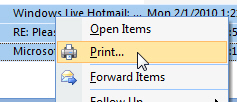 Notice that when multiple emails are selected, and you right-click on them, the Print menu item no longer displays a checkmark over the print icon: this is because when you try to print multiple emails this way, Outlook 2007 will display the Print dialog to let you customize your print settings; if you want to "quick print" several emails at once, you can, just click on the Print button in the standard toolbar. This will send all selected emails, back-to-back, to the default printer!