Password-protect Outlook 2007
 By default, anyone who has access to your computer can open Outlook 2007 and read your emails; fortunately, you can password-protect Outlook in an indirect way, by assigning a password to your personal data files (PST File). While this password protection will probably not deter an experienced hacker, it will make it impossible to most everyone to access your emails. This, in combination with locking Windows when you step away from your PC, will give you the peace of mind to know that your private emails are safe from prying eyes.
 Important: remember your password, because Outlook 2007 doesn't offer a password recovery mechanism (and third-party PST file recovery software yield mixed results).
Setup a password in Outlook 2007
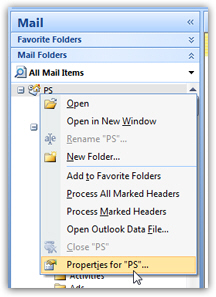 If needed, launch Outlook: then look at your email folder listing. At the very top, you should see a top level node called "Personal Folders" - since this can be renamed, your Outlook may say something different, but most probably not. Right-click on the Personal Folders top-node, and choose Properties.
Outlook will open the Properties dialog: click on the Advanced button. Then, in the new dialog that opened, click Change Password. (Outlook always says "Change Password", even if you have never set a password.)
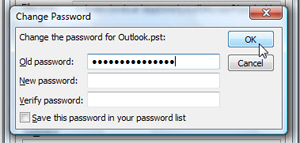
Outlook's Change Password dialog opens, and asks for the Old password, the New password, and Verify password. If you have never set a password for Outlook, leave the old password field blank; then, enter your desired password twice, and click OK. And click OK again twice to return to Outlook's main window.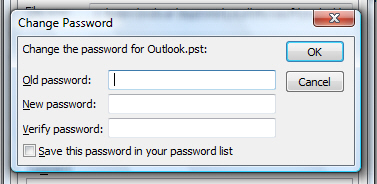
Confirm that password-protection is enabled
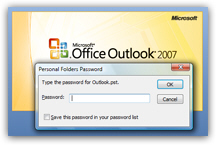
Restart Outlook, and you should see the "Personal Folders Password" dialog with an input field (see screenshot). If you do, password-protection is now active for your main PST file, and Outlook cannot open it without the proper password being supplied. No way to bypass the Personal Folders Password screen, as we'll see in the next section of this tutorial.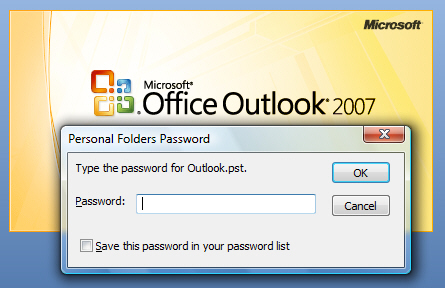
What happens when someone doesn't supply the right password?
In the first case, someone enters the wrong password for your Outlook data file; Outlook 2007 will keep displaying the Personal Folder dialog, which reads: "The password you have typed is incorrect. Retype the password." While we haven't tried entering the wrong password an infinity of times, it looks like Outlook 2007 will let you keep trying another password indefinitely (another argument for locking Windows and adding an extra layer of security - unless your password is extremely strong, and hard to guess, someone who knows you may end up guessing the password and accessing your emails and contacts.)
In the second case, someone cancels the "Personal Folder Password" dialog: the first time, Outlook will give you a second chance to enter the correct password; then, Outlook displays the following, somewhat obscure message: "Cannot start Microsoft Office Outlook. Cannot open the Outlook window. The set of folders cannot be opened. The server is not available. Contact your administrator if this condition persists."
The last case: someone enters the correct Outlook password (hopefully you!) The dialog disappears, and Outlook 2007 opens normally with full access to emails and contacts. You can't "lock Outlook" - once it is opened, emails remain visible. The request for password only occurs when Outlook 2007 was closed, and someone restarts it. Bottom line: when you step away from your desk, either lock Windows behind you, or exit from Outlook 2007.
Tip: lock Windows 7 / Vista / XP by holding down the "WinKey" (the key that shows the Windows logo), and pressing "L" (as in Lock) - this prevents access to Windows without your user account password.
Disable password protection
To remove your password from Outlook 2007, follow the steps above, but this time leave the New password and Verify password fields blank. A blank password, for Outlook 2007, essentially means "no password".