Hide / show the Bcc field in Outlook 2007 (Blind Carbon Copy)
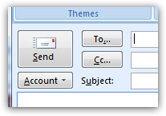 By default in Outlook 2007, the Bcc field in the email window is hidden ("Bcc" stands for "Blind Carbon Copy"). The rationale, presumably, is to make Outlook more user-friendly by hiding a email field not likely used by beginners. In this tutorial, we will show you how to show the Bcc field in Outlook 2007 (and how you can hide Bcc later on). By default, both the "To" and "Cc" email recipient fields are visible.
Show the Bcc field
When you are in front of the email editor in Outlook 2007, you can show or hide the Bcc field. The email editor window is the one that opens when you create a new email, reply to an email, or forward an email. Notice that the Bcc field is not visible: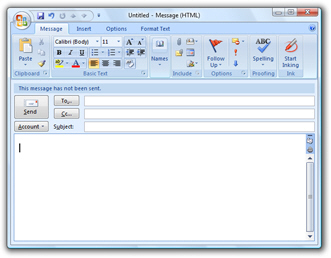
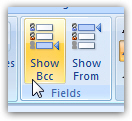 To show the blind carbon copy field in Outlook 2007's new email window, click on the Options tab of the ribbon: the second section of commands, labeled Fields, contains a Show Bcc button: click on it, and the Bcc field is now displayed below the To and Cc (Carbon Copy field), right above the email's Subject field.
This is a persistent feature: next time you compose a new email in Outlook 2007, the Bcc field will automatically be visible: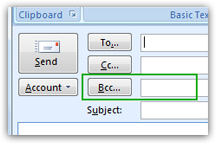
Notice that Outlook 2007 shows the Bcc field as a clickable button, just like To and Cc - this indicates that the Bcc field behaves like the two other email recipient fields, and that you can click it to load your address book to select contacts.
The show/hide Bcc setting is also persistent across sessions: the next time you start Outlook 2007, it will show the Bcc field or hide it, based on the last time you changed this option.
Hide the Bcc field
Should you decide to hide the Bcc field later on, just go back to the Options tab and click on Show Bcc - you notice from the screenshot that when the Bcc field is visible, Outlook 2007 shows the Show Bcc button in orange. Otherwise, the button is blue, and only orange when you move your mouse cursor over it. Very simply, if you want to make the Bcc field visible again, you can unhide it the same way.